
Project Budgets
Overview
The Budgets page in Analytics Hub lets you track how your cloud spending compares to the limits you have set for a specific project. Use it to monitor all active, planned, and expired budgets scoped to this project at a glance.
To access the Budgets page, you need the Access FinOps management permission. The page shows only budgets scoped to this project that you have permission to read.
Content on this page
Page navigation — Navigation → Click on a project → Click on 'Analytics Hub' → Go to 'Budgets'
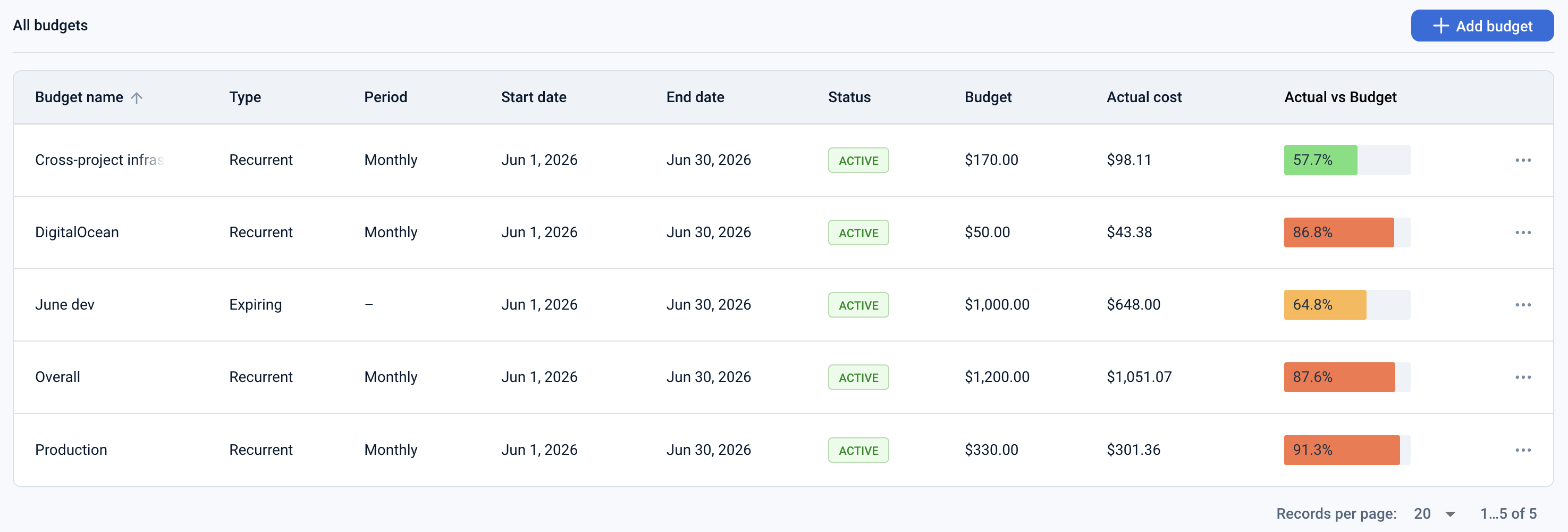
The page displays a table listing all budgets scoped to this project that you have access to, sorted alphabetically by name by default.
Each row in the table contains the following information:
- Name — The budget's name.
- Type — Either Expiring (a one-time budget with a fixed end date you set) or Recurrent (a budget that automatically resets on a regular schedule).
- Period — For recurrent budgets: Monthly, Quarterly, or Yearly. For expiring budgets, this column shows —.
- Start date — The date the budget period begins.
- End date — The date the budget period ends. For recurrent budgets, this is automatically set to the last day of the current billing period and updates at the start of each new period.
- Status — One of three values:
- Planned — The budget's start date is in the future.
- Active — The budget is currently running.
- Expired — The budget's end date has passed.
- Budget amount — The spending limit set for this budget.
- Actual cost — The total cloud costs recorded so far within this budget's scope and period.
- Spend — A color-coded progress bar showing how much of the budget has been used.
Actions that you can perform on this page
On the Budgets page you can perform the following actions:
- Create a budget — Click + Add budget to open the budget creation form. You need to set a name, type, scope, start date, end date (for expiring budgets), and budget amount.
- Edit a budget — Open the context menu on a budget row and select Edit to change the budget's name, scope, end date (for expiring budgets), or amount. The budget type and recurrence period cannot be changed after the budget is created.
- Delete a budget — Open the context menu on a budget row and select Delete. Confirm the action in the dialog that appears.
- View budget details — Click anywhere on a budget row to open the Budget card for that budget.
- Sort the table — Click any column header to sort the list by that column. Click the same header again to reverse the order. The table is sorted by name (A–Z) by default.
Last updated on 1 Aug 2026