
Project Services
Manage Applications
Overview
Users can search and delete multiple applications using this page. On clicking a specific application you can launch a page to manage and view details about the application VM.
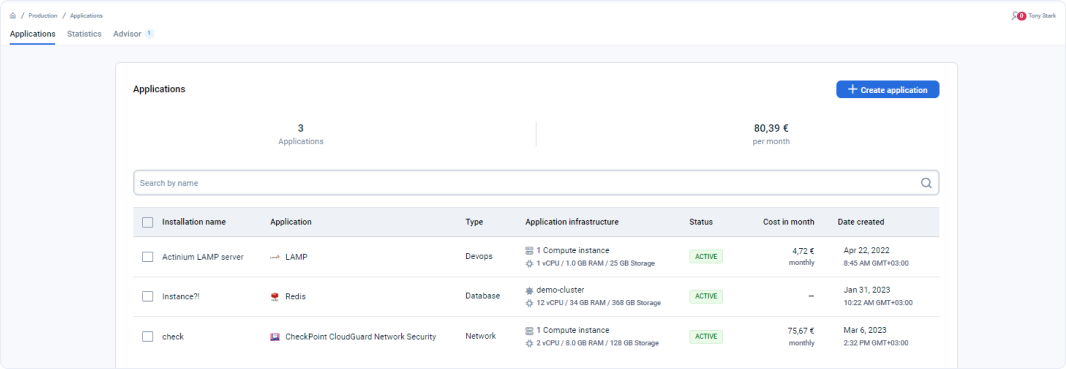
Table report on the page
Where can I find all the applications deployed in my project? - FAQ
Page navigation — Click on “All Projects“ and navigate to your project. You will be, by default on the project “Summary“ link in the left sidebar. Click on the “Applications” link in the sidebar on the left. You will be navigated to the “Applications” tab by default.
You can find a searchable table with all the applications installed listed on this page. You can click on each of these installed applications to manage them. The table gives the following information to you:
- Application installation name - This is the application installation name provided by the user. If nothing is provided, a default name is provided by the platform. For example, if you install MongoDB - “default-mongodb-app-name”
- Application - Name of the application installed for example “MongoDB”
- Type - Tells the type of application installed. For example, if you install MongoDB it will be of the type “Database”
- Application Infrastructure - Tells you the number of VMs, number of vCPUs, memory (vRAM) and storage involved in your application installation
- Status - This column gives the state of the application installation. If it shows “Error”, then you need to look into it or create a new one.
- Cost in a month - This is the monthly cost of the application installation
- Date created - The application installation was created on this date and time
Watch the vieo about app management
How is this guide?
Last updated on 1 Aug 2026