
Schedules
Overview
This section of the emma platform allows users to view and manage schedules of their projects. The schedules page provides tools to create, configure, and monitor planned tasks. Here, users can review each schedule and view detailed information, including actions, execution dates, associated resources, costs, and logs.
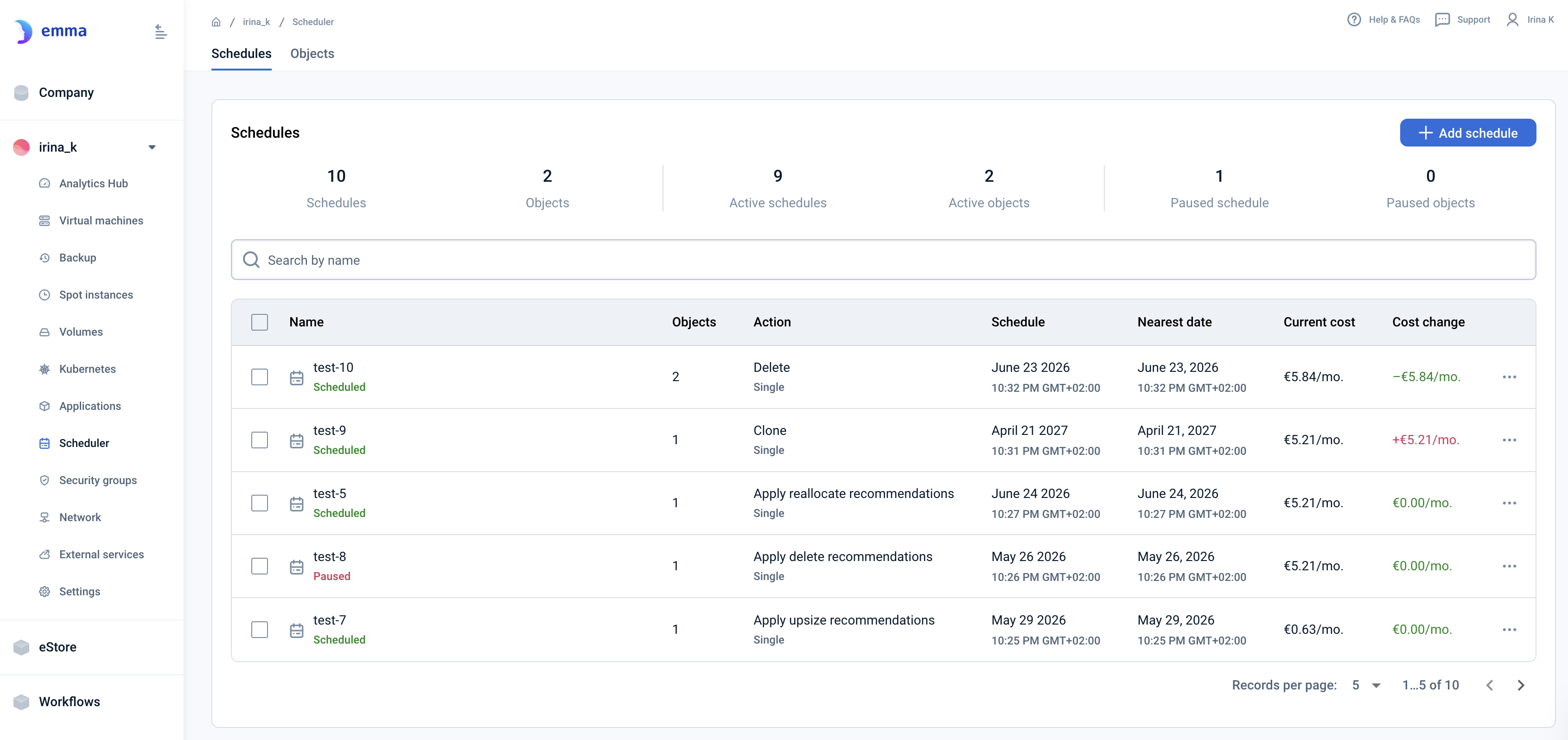
Page description
Information Pane
Information pane provides aggregated information on the project's schedules, such as:
- Schedules: displays the aggregate count of all schedules set up within the project.
- Objects: indicates the total number of compute instances affected by schedules.
- Active Schedules: lists how many schedules are currently set to execute in the future.
- Active Objects: displays the number of unique compute instances affected by upcoming schedules.
- Paused Schedules: reflects the number of schedules that are in a "Paused" state.
- Paused Objects: displays the number of unique compute instances participating in paused schedules, but not affected by the active ones.

Key Features and Functions
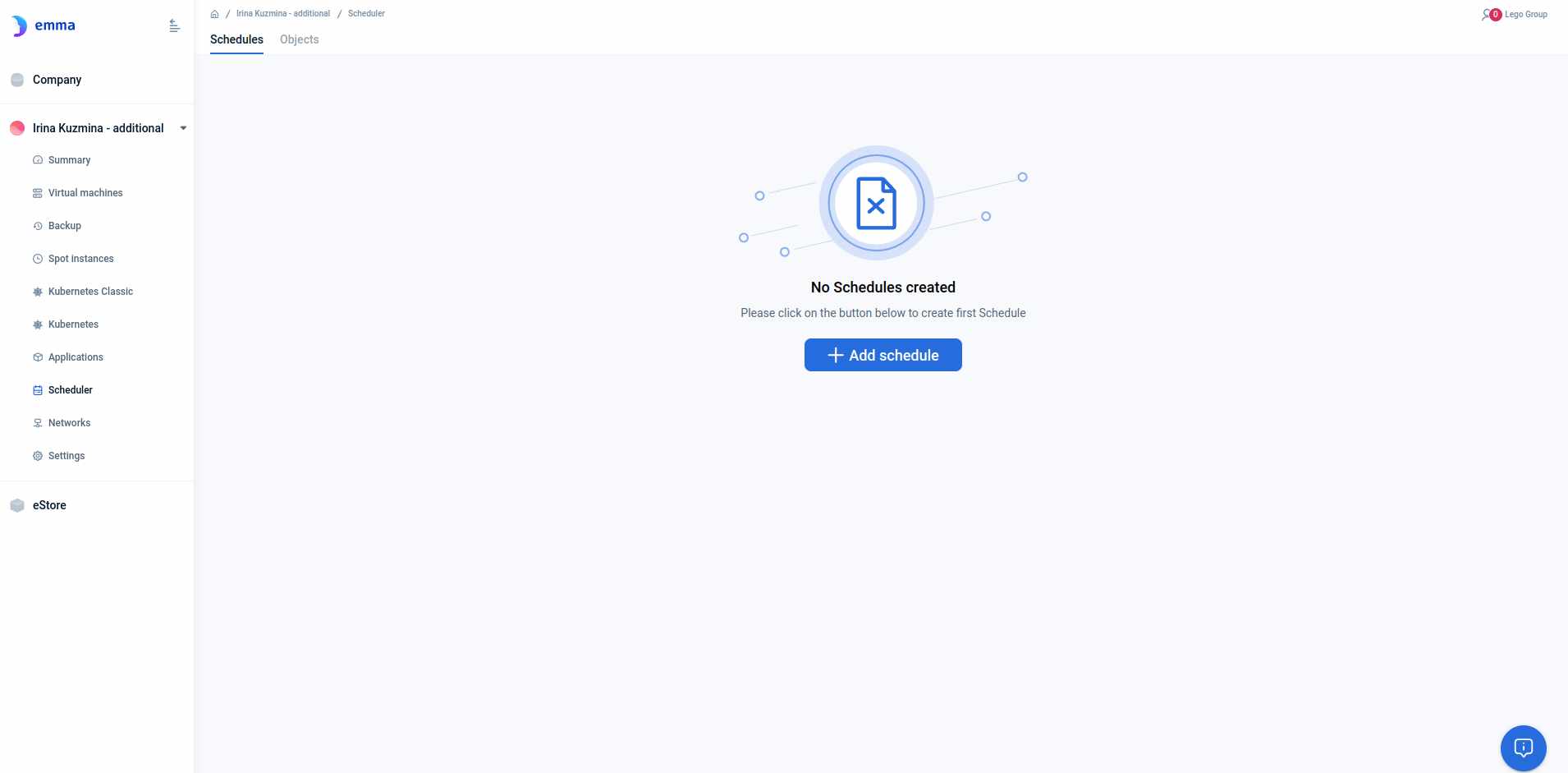
- "+ Add Schedule" button: initiates the creation of a new schedule on the Create schedule page. Note that you must have at least one active virtual machine within the project to proceed with scheduling.
- Search bar: enables quick location of schedules by typing the initial characters of their names.
- Check-boxes: allow for bulk actions on multiple schedules simultaneously.
- Name: each schedule should have a unique name to avoid confusion.
- Schedule Status: each status type's implications are elucidated in our FAQ section.
- Objects: the count of objects within a given schedule.
- Action: shows the action configured for the schedule, such as VM power operations, cloning, deletion, or applying advisor recommendations. Each action is detailed in our FAQ.
- Schedule: describes when the action is scheduled to occur.
- Nearest Date: indicates the forthcoming execution date for the schedule.
- Current Cost: shows the current cost of resources affected by the schedule.
- Cost Change: provides estimates of the schedule's cost effect.
- Ellipsis ('...'): presents additional actions such as detailed information access, editing capabilities, immediate execution, scheduling, pausing, or removal of schedules, contingent on their current state.

Actions you can perform on this page
1. Add a Schedule: The "+ ADD SCHEDULE" button redirects you to the schedule creation interface. Before creating a schedule, ensure you have a non-failed virtual machine available.
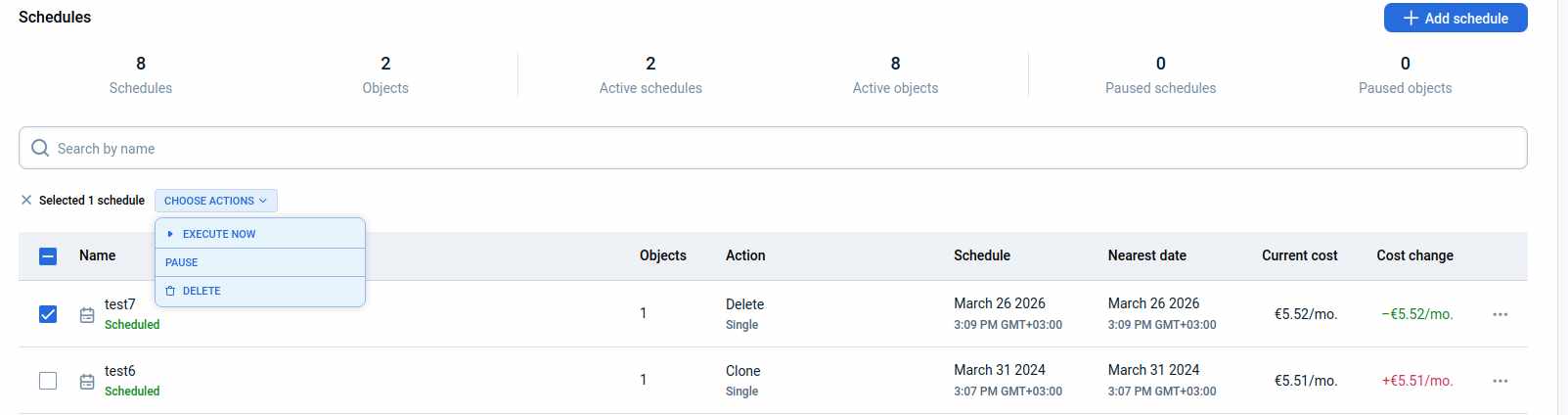
2. Checkbox Selection:
- Execute Now: runs the scheduled action immediately. After manual execution, the schedule continues to work as configured.
- Schedule: activates a paused schedule. The schedule will continue to work as configured.
- Pause: pauses the schedule. The schedule will not run until it is scheduled again.
- Delete: permanently removes the schedule from the system.
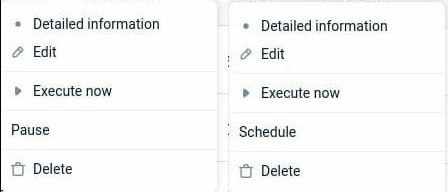
Notice that the list of actions can be changed depending on Schedule(s) status(es):
- Scheduled: Execute now, Pause, Delete
- Paused: Execute now, Schedule, Delete
- In progress: Delete
- Error: Delete
3. Ellipsis Menu:
By clicking on the ellipsis on the schedule line you can get detailed information, edit, execute now, schedule, pause, or delete the schedule depending on its status.
- Detailed information: you can click on this to be redirected to a Schedule General Info page to get information about action/type, nearest date, resources, and logs list.
- Execute now: you can click on this to run scheduled actions now. After manual execution, the Schedule will work as scheduled.
- Schedule: you can click on this to turn on the paused schedule. The Schedule will work as scheduled.
- Pause: you can click on this to pause a scheduler. The Schedule will not work as scheduled.
- Edit: you can click on this to be redirected to an Edit schedule page for making changes in Scheduled objects or execution time.
- Delete: you can click on this to delete a scheduler.
Notice that the list of actions can be changed depending on Schedule(s) status(es):
-
Scheduled: Execute now, Pause, Delete, Edit
-
Paused: Execute now, Schedule, Delete, Edit
-
In progress: Delete
-
Error: Delete
-
4. Click on Schedule line to get the Detailed information: you will be redirected to a Schedule General Info page to get information about action/type, nearest date, instances, and logs list.
FAQ
What do schedule statuses signify?
- Scheduled: the schedule is active, and actions will commence as scheduled.
- Paused: the schedule is halted, and actions will not be initiated.
- In progress: actions on scheduled resources are currently underway.
- Error: an error has occurred.
What actions can I perform with scheduled resources?
- Start: power on virtual machines according to a schedule. For example, to start a virtual machine daily at 9 a.m.
- Shutdown: power off virtual machines according to a schedule. For example, to shut down a virtual machine daily at 5 p.m.
- Reboot: restart virtual machines according to a schedule. For example, to reboot a virtual machine every Friday at 11 a.m.
- Start/Stop: power on and power off virtual machines according to a schedule. For example, to start a virtual machine daily at 9 a.m. and shut it down daily at 6 p.m.
- Apply rightsize recommendations: apply advisor recommendations that reduce a virtual machine’s configuration to better match actual workload and lower costs. This action is typically used when CPU or memory utilization remains low over time.
- Apply upsize recommendations: apply advisor recommendations that increase a virtual machine’s configuration to ensure sufficient performance under sustained high load. This action is typically used when CPU or memory utilization remains high over time.
- Apply delete recommendations: apply advisor recommendations that delete idle virtual machines to eliminate unnecessary costs.
- Apply reallocate recommendations: apply advisor recommendations that move resources to a lower-cost location. Depending on the recommendation, this action can reallocate a virtual machine to another data center, move it to another provider, or reallocate a volume.
- Clone: create an identical copy of an existing virtual machine. For example, to clone a virtual machine every 5th day of the month at 10 p.m.
- Delete: delete virtual machines according to a schedule. For example, to delete virtual machines on the last day of each month at 8 p.m.
What actions can I take depending on my project role?
- Users with “Manage” infrastructure permissions in the project can perform any actions with any Schedules.
- Users with “Operate” infrastructure permissions in the project can perform any actions with Schedules for Start, Shutdown, Reboot, and Start/Stop.
- Users with “Read” infrastructure permissions in the project can only see a list of Schedules and their detailed information, but can not perform any actions with any Schedules.
Last updated on 1 Aug 2026