
FAQ - common
You can find more details here based on what users have asked. We love hearing from you and will update this section with your suggestions. Feel free to reach out to our support team and ask questions.
Although emma's interface is intuitive and user-friendly, users may require more detailed information about products, available actions, and additional features. To address this, reference documentation with easy navigation is provided on the portal. Each portal page includes a description of navigation elements and available actions. Each portal page includes a description of navigation elements and available actions. By default, the documentation opens to the functionality relevant to the page the user is viewing. If you do not find the information you need, wish to suggest improvements to the descriptions, request the development of new functionality, or report an error in the text, please contact us through a support ticket.
How to find information on the portal?
To open the Help articles and FAQs on the portal, click on the "Help&FAQs" button in the upper right corner of the screen. By default, the documentation relevant to your current page will open. You can navigate through the document using the provided navigation options or utilize the search function for specific inquiries. You can access the documentation from any page on the portal by clicking this button.
By clicking on the link, you will be directed to the main page of the documentation. On the left side, you'll find a navigation menu for easy access. Clicking on items in this menu will take you to information corresponding to sections of the portal.
- "My Company": Contains details on managing settings common to all company projects, including access security.
- "My Projects": Provides information on project settings, creating entities, and managing them.
- "Project Services": Offers details on entities available for deployment and management through the portal. Information is updated as new features are introduced and existing functionality is improved.
- "External Services": Lists all the cloud provider's services that can be connected to a company.
- "eStore": Contains information on current applications available for deployment through the portal. If the application you need is not listed, you can request it through a support ticket.
- "Integrations": Includes documentation on the API and Terraform.
This documentation is continuously updated as new features are added and current functionalities are improved.
How to create tickets?
emma welcomes your feedback through the support ticket form. You can create a ticket from anywhere in the portal by clicking the "Support" button. This will open a side panel displaying a list of all tickets created for your company, along with an "Add New Case" button. By clicking this button, a form will appear for you to enter the necessary information for our support team to process your request effectively. Please make sure to fill in all the required fields to successfully submit your request.
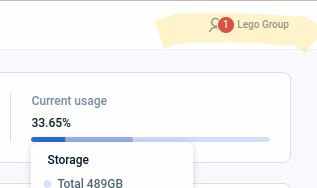
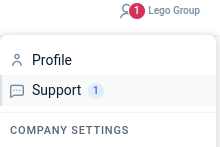
To access the support page, click on the profile emblem and select the support button. The page that opens will display a list of your company's existing tickets and a button to open the application form. For your convenience, a search feature is available to filter tickets by keywords and status. To view a ticket, simply click on its entry to see the details of the support request.
- via the profile item: click on the "Profile" name -> press the "Support" button
What information do we need to have on the ticket?
Please fill out the ticket carefully, as detailed information is essential for us to process your request efficiently.
- To help us categorize your request accurately, please select the most appropriate topic for your ticket:
- Report an Incident: For situations that require a quick response.
- Report a Problem: If you encounter difficulties with the portal or if a service is temporarily unavailable.
- Request Information: For any inquiries or questions you may have.
- Create Task: For requests to deploy an application or for new functionality.
- In the subject line, please specify the section where the issue occurred or the object or topic of your inquiry.
- Please, provide a detailed description of the problem in the text body, and include as much information as possible.
- You can attach logs, screenshots, and documents to your request for better processing of your request.
Thank you for providing the necessary details to ensure a prompt and effective response.
Last updated on 16 Jan 2025