
Project ServicesScheduler
Schedule General info
Overview
This page provides full information about a schedule, including its name, status, metadata, configured action, nearest execution date, schedule settings, associated resources, current costs, and cost changes. Additionally, users can navigate to a dedicated tab to view logs associated with the schedule.
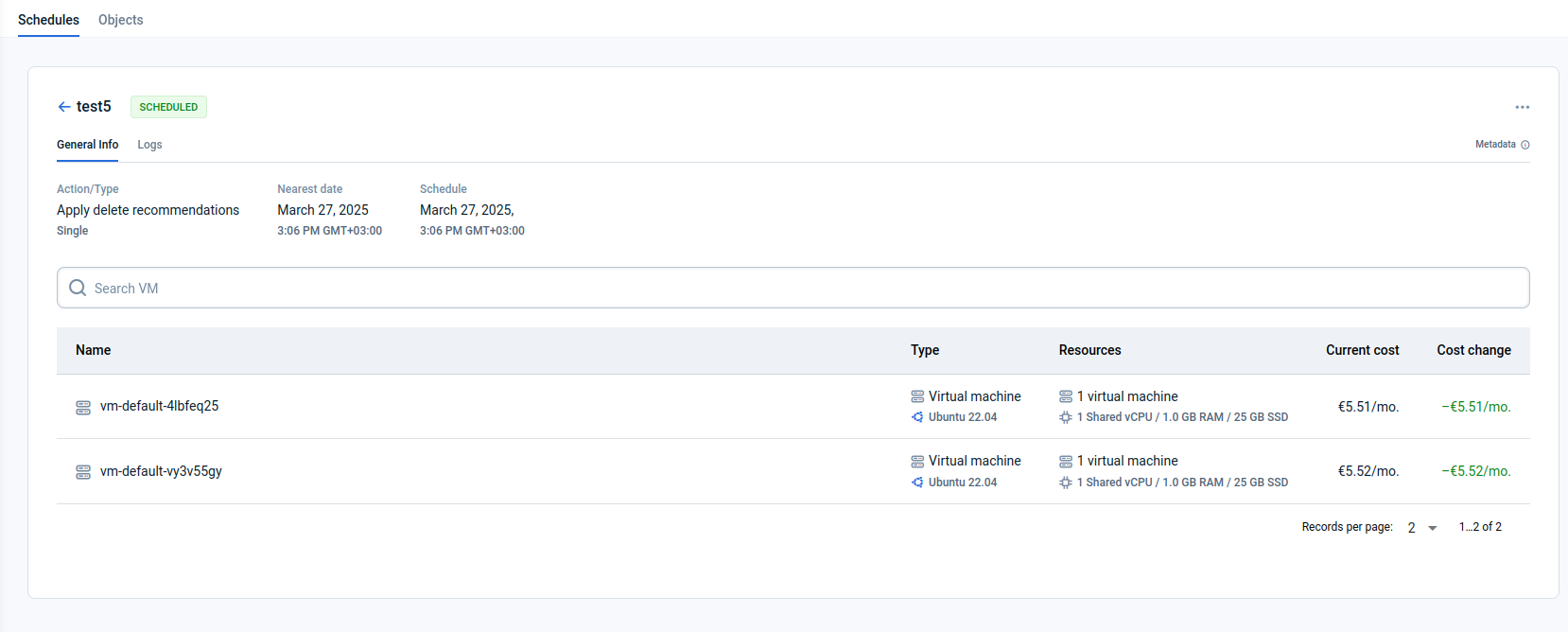
Page description
- Name: each schedule should have a unique name to avoid confusion.
- Schedule Status: each status type's implications are elucidated in our FAQ section.
- Metadata: when you hover over this element, a tooltip displays the schedule creation and last edit date and time.
- Action: shows the action configured for the schedule. Each action is detailed in the FAQ.
- Nearest Date: indicates the forthcoming execution date for the schedule.
- Schedule: describes when the action is scheduled to occur.
- Search bar: enables quick location of schedules by typing the initial characters of their names.
- Name: the name of the virtual machine.
- Type: information about the object type and operating system.
- Resources: resource details for the virtual machine, such as the number of vCPUs, amount of RAM, and SSD size.
- Current Cost: shows the current cost of the resources affected by the schedule.
- Cost Change: provides estimates of the schedule's cost effect.
- Ellipsis ('...'): presents additional actions such as editing, immediate execution, scheduling, pausing, or deleting the schedule, depending on its current state.
Actions you can perform on this page
Actions:
- View full information about the schedule, including its name, status, metadata, action, nearest date, schedule settings, associated resources, current cost, cost change, and logs.
- By clicking the ellipsis on the schedule line, you can edit, execute now, delete, schedule, or pause the schedule depending on its status (see the FAQ):
- Execute now: runs the scheduled action immediately. After manual execution, the schedule continues to work as configured.
- Schedule: activates a paused schedule. The schedule will continue to work as configured.
- Pause: pauses the schedule. The schedule will not run until it is scheduled again.
- Edit: redirects to the Edit schedule page, where you can change scheduled objects or execution time.
- Delete: deletes the schedule.
FAQ
What do schedule statuses signify?
- Scheduled: the schedule is active, and actions will commence as scheduled.
- Paused: the schedule is halted, and actions will not be initiated.
- In progress: actions on scheduled resources are currently underway.
- Error: an error has occurred.
What actions can I take with a schedule?
- Execute Now: triggers immediate execution of the scheduled action without disrupting subsequent scheduled runs.
- Schedule: reactivates a paused schedule so that planned executions resume.
- Pause: temporarily halts the schedule and stops all planned executions.
- Delete: permanently removes the schedule from the system.
What actions can I perform with scheduled resources?
- Start: power on virtual machines according to a schedule. For example, to start a virtual machine daily at 9 a.m.
- Shutdown: power off virtual machines according to a schedule. For example, to shut down a virtual machine daily at 5 p.m.
- Reboot: restart virtual machines according to a schedule. For example, to reboot a virtual machine every Friday at 11 a.m.
- Start/Stop: power on and power off virtual machines according to a schedule. For example, to start a virtual machine daily at 9 a.m. and shut it down daily at 6 p.m.
- Apply rightsize recommendations: apply advisor recommendations that reduce a virtual machine’s configuration to better match actual workload and lower costs. This action is typically used when CPU or memory utilization remains low over time.
- Apply upsize recommendations: apply advisor recommendations that increase a virtual machine’s configuration to ensure sufficient performance under sustained high load. This action is typically used when CPU or memory utilization remains high over time.
- Apply delete recommendations: apply advisor recommendations that delete idle virtual machines to eliminate unnecessary costs.
- Apply reallocate recommendations: apply advisor recommendations that move resources to a lower-cost location. Depending on the recommendation, this action can reallocate a virtual machine to another data center, move it to another provider, or reallocate a volume.
- Clone: create an identical copy of an existing virtual machine. For example, to clone a virtual machine every 5th day of the month at 10 p.m.
- Delete: delete virtual machines according to a schedule. For example, to delete virtual machines on the last day of each month at 8 p.m.
What actions can I take depending on my project role?
- Users with “Manage” infrastructure permissions in the project can perform any actions with any Schedules.
- Users with “Operate” infrastructure permissions in the project can perform any actions with Schedules for Start, Shutdown, Reboot, and Start/Stop.
- Users with “Read” infrastructure permissions in the project can only see a list of Schedules and their detailed information, but can not perform any actions with any Schedules.
How is this guide?
Last updated on 1 Aug 2026