
All volumes
Overview
This page displays all the volumes in the project. Users can view the details of each volume by opening it and also access various actions available for managing the volume.
About volumes
A volume is a storage device that can be attached to a separate virtual machine or Kubernetes node in the cluster to store data. It is persistent, meaning it retains data even if the virtual machine is stopped or deleted. Volumes are commonly used to store operating systems, applications, and other important files.
There are two main types of volumes: system volumes and data volumes.
A system volume contains the operating system and essential files needed to boot the virtual machine. These volumes are automatically created when a VM is launched.
A data volume is used to store user data, applications, and other non-system files. Unlike system volumes, data volumes can be attached or detached from virtual machines as needed, offering more flexibility.
| Feature | System Volume | Data Volume |
|---|---|---|
| Primary Purpose | Stores OS and system files | Stores user and application data |
| Creation | Automatically created with virtual machine | Created independently, attached as needed |
| Resize | Can only be increased | Can only be increased |
| Detachment | Cannot be detached | Can be detached and moved between virtual machines |
| Deletion | Is deleted only when the virtual machine is deleted | Can be deleted independently |
Persistent volumes for Kubernetes
Data volumes can also be provisioned for Managed Kubernetes to provide persistent storage for Kubernetes workloads (PVC/PV) and are called Persistent volumes.
Although they are data volumes by type, they’re managed by Kubernetes, so Attach, Detach, Resize, and Delete aren’t available for them in the emma portal All volumes page.
A volume can have one of the following statuses:
- Busy - The volume is being prepared
- Available - This volume is prepared for use, but is not currently attached to any instance
- Active - The volume is attached to an instance and fully operational
- Failed- Something went wrong. Please try again or contact our tech support team for assistance
Information on this page
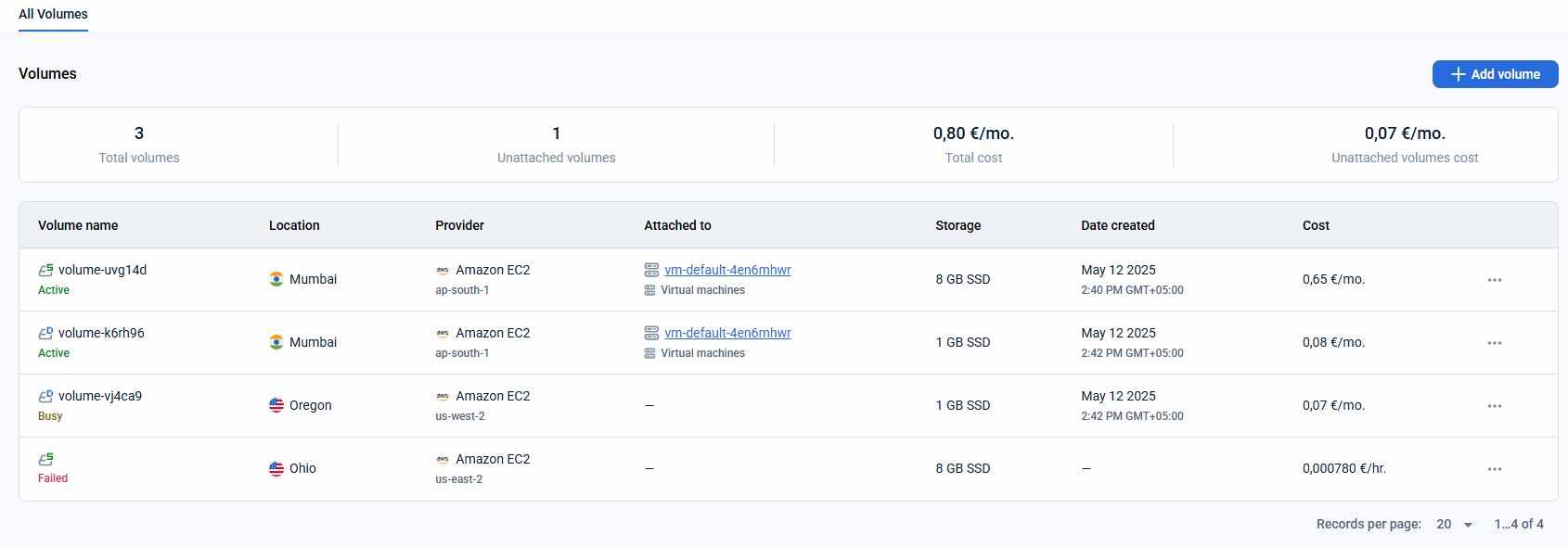
This page provides an overview of volumes and the ability to perform actions with them.
- “+Add volume” button - To launch the “Create volume sidepage”
- Summary information:
- Total volumes - shows the total number of volumes in the project
- Unattached volumes - counts only data volumes that are not attached to any virtual machine
- Total cost - displays the total cost of all volumes in the project
- Unattached volumes cost - shows the total cost of data volumes that are not attached to any virtual machine
Note: Kubernetes persistent volumes are not attached to virtual machines. If such a volume was detached in Kubernetes (not emma portal), it will also appear as unattached.
- Table with volumes. Each volume has the following information:
- Type icon - to help you differ system and data volumes
- Name
- Status
- Location
- Provider and datacenter
- The instance to which the volume is attached to. If the volume is not attached to any instance, this field will be empty.
- Storage information: type and size in GB
- Date and time when volume was created
- Cost of the volume per month
- “Ellipsis” menu - To start the needed action for the one volume
Actions you can perform on this page
On this page, you can perform actions using the buttons or the "Ellipsis" menu.
Add a new volume
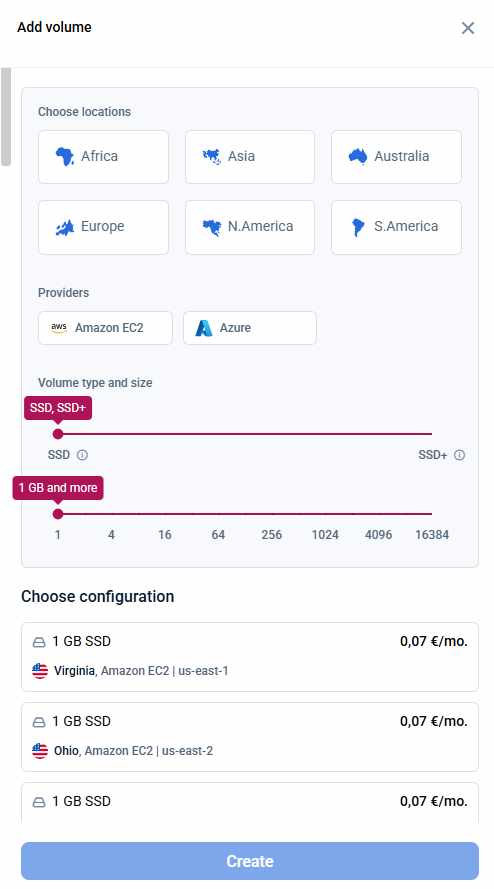
To create a new standalone data volume, click the “+Add Volume” button in the upper-right corner.
The “Add Volume” side page will appear, allowing you to specify the provider, location, size, and type for the new volume. The list of available configurations updates dynamically based on your preferences and is sorted by cost per month in ascending order. To create a volume, select your desired configuration and click the “Create” button. The volume creation process will then begin.
Important Points to Consider:
- Only users with “Manage” rights in the project can create a new volume.
- Only data volumes can be created separately; system volumes must be created with a virtual machine.
- Once the creation process is complete, the volume will have the status “Available”, indicating that it is ready for use but not yet attached to any instance.
- Kubernetes Persistent Volumes are typically created as part of Kubernetes persistent storage flow. A standalone volume created here is ready to be used, but it must be configured and attached to Kubernetes workloads via kubectl.
View volume details
To access the detailed information page for a volume:
- Click on the corresponding volume row in the table, or
- Select the “Detailed Information” option from the context menu of the relevant volume.
Edit a Volume
To edit a volume:
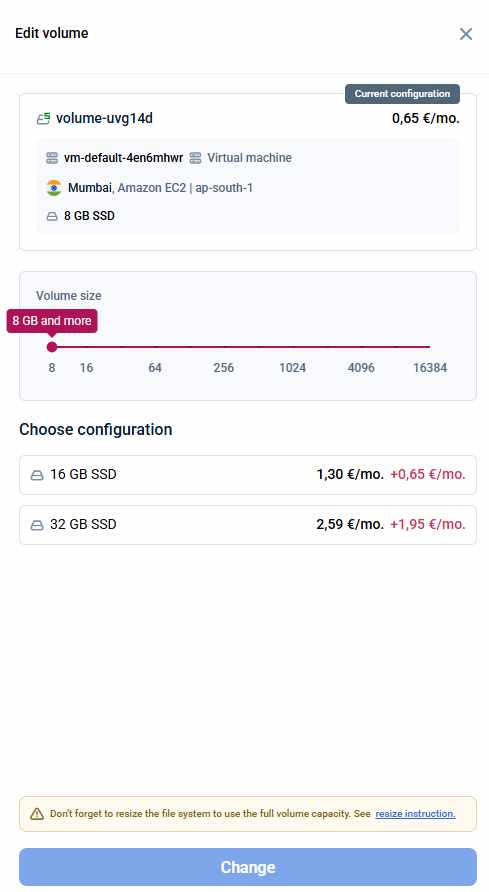
- Click the “Edit” button in the volume’s context menu.
- In the “Edit volume” sidepage, select your preferred volume configuration from the available options.
- Click “Change” to confirm and start the editing process.
Important Points to Consider:
- Only users with “Manage” rights in the project can edit a volume.
- System volumes can be edited only for virtual machines running on AWS, Azure, GCP, GCore, and OVH. Data volumes can be edited for all instances.
- Volume size can only be increased; reducing the size is not supported.
- Both system volumes and data volumes can be edited.
- Attached volumes can only be edited when the virtual machine is in the “ON” or “OFF” state.
- Volumes must be in the “Active” or “Available” state to be edited.
- After resizing a volume, the additional storage capacity may not immediately be usable by the operating system. To fully utilize the expanded volume, you must manually resize the file system. Refer to the article to find the instructions.
Attach volume
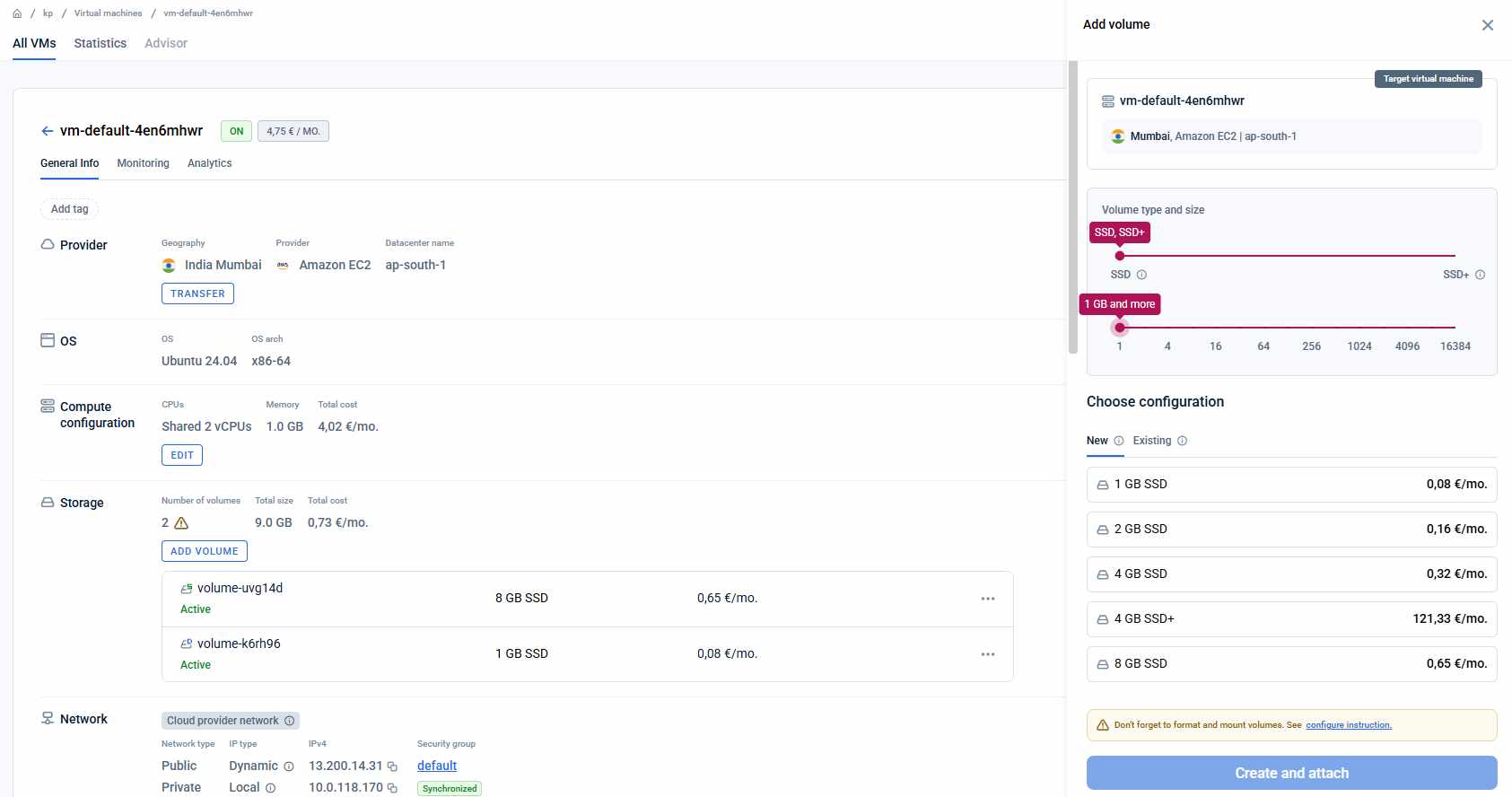
To attach a volume to an instance, open the context menu of the volume and select the “Attach“ option. This will open the “Attach volume” sidepage. In the sidepage, you’ll find a list of instances that the volume can be attached to. The list is sorted by instance cost per month. To begin the attaching process, select the virtual machine and click on the “Attach“ button.
Important Points to Consider:
- Kubernetes persistent volumes cannot be attached via the emma portal. To perform this action, attach the volume through Kubernetes (see volume setup guide).
- Only users with “Operate” and higher access in the project are allowed to attach volumes.
- A volume can only be attached if it is in the same data center and belongs to the same provider as the instance.
- The action is only applicable to data volumes.
- A volume can only be attached to a virtual machine that is in the “ON” or “OFF” state.
- Volumes must have the “Available” status to be eligible for attachment.
- Cloud providers impose limits on the number of attached volumes and total storage size per instance. If adding a volume exceeds these limits, emma will prevent the action and display the following message: “The action will exceed the provider's resource limits for the number of volumes or total volume size for one instance“.
- Providers limits:
- AWS: Supports 27–28 volumes per instance.
- GCP:
- Maximum attached volumes:
- 128 volumes for Standard and HPC instances
- 16 volumes for Shared compute instances
- Maximum total attached storage:
- 257 TB for Standard and HPC instances
- 3 TB for Shared compute instances
- Maximum attached volumes:
- Azure: Limits depend on the instance's vCPU count:
- 1 vCPU → 2 volumes
- 2 vCPUs → 4 volumes
- 4 vCPUs → 8 volumes
- 8–12 vCPUs → 16 volumes
- 16+ vCPUs → 32 volumes
- DigitalOcean: Allows up to 15 volumes per virtual machine.
- Providers limits:
Detach volume
The option is available only when a data volume is currently attached to an instance.
To detach a volume:
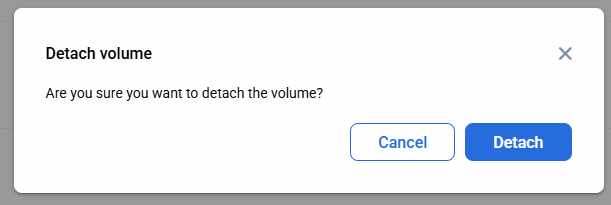
- Open the volume context menu and select Detach.
- Confirm by clicking Detach to start the process.
- The volume detaching process will start.
Important Points to Consider:
- Kubernetes persistent volumes cannot be detached via the emma portal. To perform this action, detach it through Kubernetes.
- Only data volumes can be detached. The system volume of a virtual machine cannot be removed.
- Only users with “Operate” and higher access in the project can detach volumes.
- Volumes cannot be detach when virtual machine is not in “ON” or “OFF” state.
- Volumes cannot be detach when volume is not in “Active” state.
Delete volume
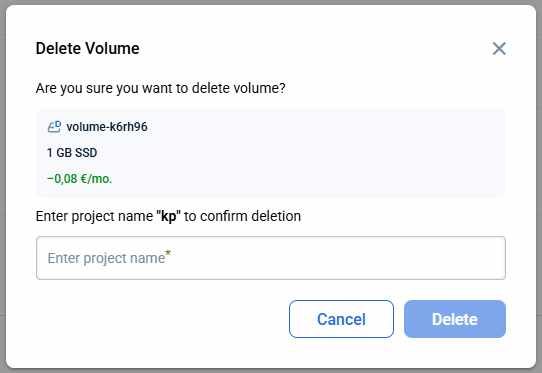
To delete a volume click on its context menu icon, select the “Delete” option from the dropdown menu. The “Delete volume“ modal window will appear. Confirm deletion by entering the project name and click on the “Delete” button to initiate the process.
Important Notes:
- Kubernetes persistent volumes cannot be deleted directly via the emma portal. Delete them through Kubernetes, or detach them via Kubernetes first and then delete the volume from the portal.
- Only users with “Manage” rights in the project can delete volumes.
- Deleting a volume is permanent. The volume cannot be recovered, and all data will be permanently lost.
- Only data volumes can be deleted. The system volume of a virtual machine cannot be removed.
Last updated on 15 Aug 2026