
Company Allocation Optimizer
Brand new article
Overview
This page allows users to estimate reallocation options for products to help optimize cloud expenses.
The dashboard provides a visual overview of reallocation opportunities for virtual machines (VMs), detached volumes and on-demand Kubernetes nodes. emma automatically searches for more cost-effective configurations across different cloud providers and locations, identifying the most suitable low-cost options.
The chart at the top shows the flow of resources from their current data centers to recommended ones, highlighting potential savings. Beneath the chart, a detailed table lists each resource’s current setup, recommended configuration, location, and cost difference.
The dashboard displays only data that users have access to read. For example, a user who is a member of projects A and B but not a member of project C would be able to see only summary information for projects A and B.
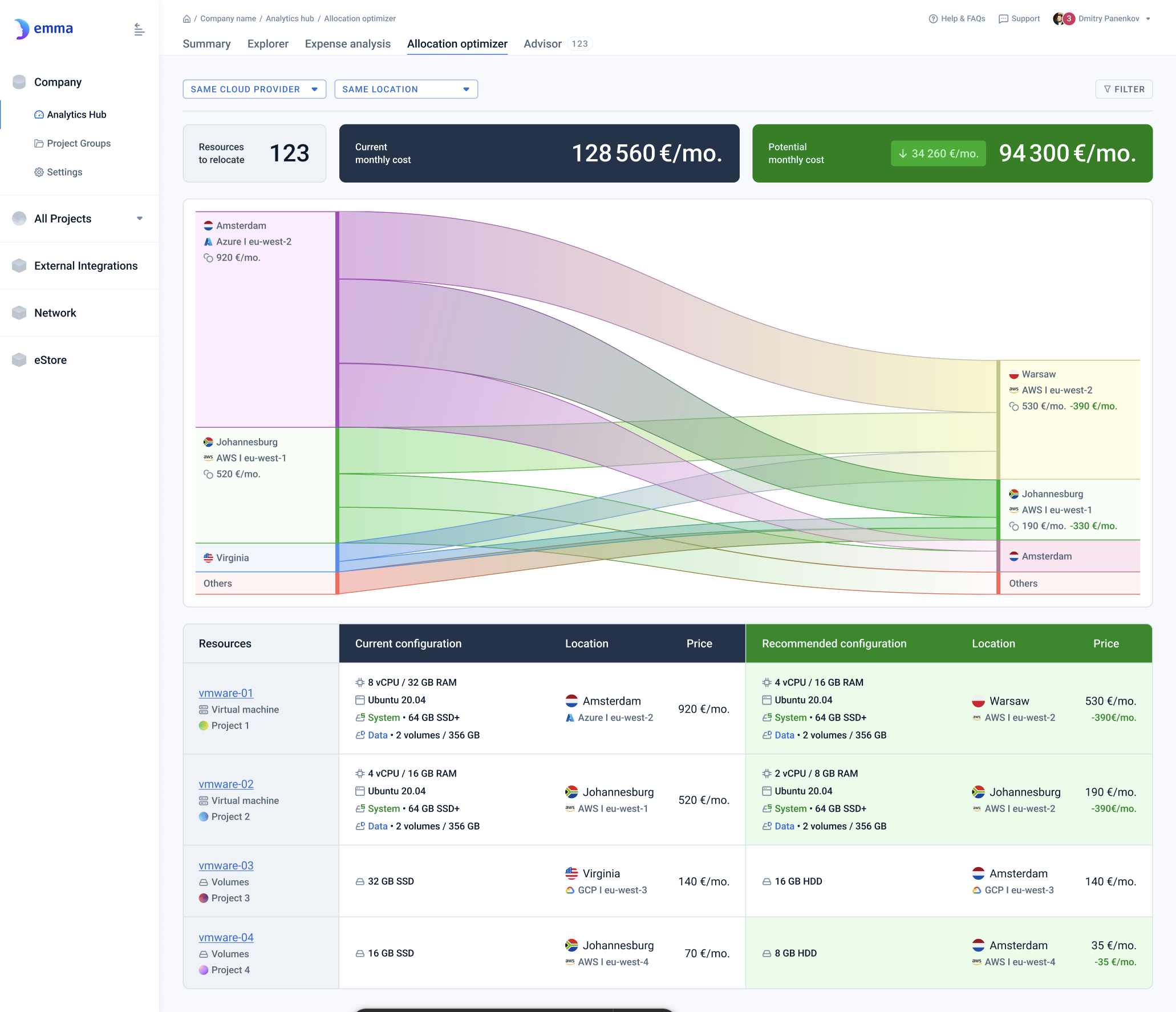
Analytics on this page
How can I restrict the optimization search by cloud provider or location? - FAQ
emma allows you to deploy infrastructure across multiple cloud providers and locations.
You can narrow the scope of configurations used in the optimization search by setting restrictions for the cloud provider and location.
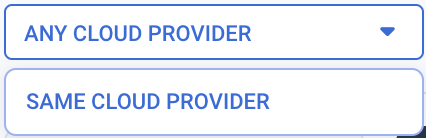
Cloud provider restriction dropdown includes: Any cloud provider, Same cloud provider
Page navigation — Navigation → Click on ‘Company' → Click on 'Analytics Hub’ → Go to 'Allocation optimizer' and then click on the Cloud provider restriction button
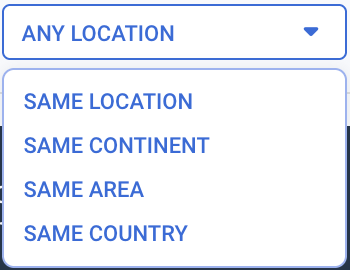
Location restriction dropdown includes: Any location, Same location, Same continent, Same area, Same country
Page navigation — Navigation → Click on 'Company' → Click on 'Analytics Hub’ → Go to 'Allocation optimizer' and then click on the Location restriction button
How can I filter products? - FAQ
In your company, various products may be created across different projects, services, cloud providers, locations, time periods, etc. This filter allows you to refine and analyze these products by applying multiple conditions and parameters, providing deeper insights into the data displayed on the dashboard
Page navigation — Navigation → Click on 'Company' → Click on 'Analytics Hub’ → Go to 'Allocation optimizer' and then click on the Filter button
Choose and Apply Filters:
- First, select the parameter by which you want to filter data
- When selecting "Tag" as Parameter, you will be presented with fields to specify the operator, key, and an optional value
- Leave the value field empty to find all products with the specified key, regardless of its value.
- Select 'No tag value' for the value field to find only products that have the specified key and an associated value that is empty.
- In the field that appears on the right, select the appropriate operator from the dropdown list
- Enter the value by which you want to filter or select from the proposed options
- Click the “Apply” button to apply selected filters
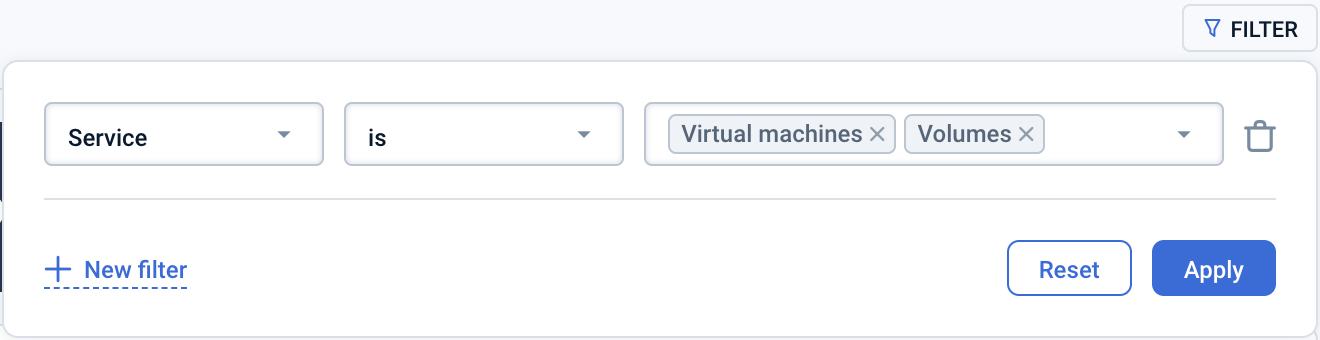
Applied filters appear in the bars above the chart

To filter by multiple parameters use one of two ways:
- in the “Filter” control, click the “+ New filter” button during the filters selecting
- click on the button on the right of the existing filter bar
To reset a filter use one of three ways:
- reset a single filter:
- in the “Filter” control, click the “Trash” icon on the right side of the filter, then click the “Apply” button click the “X” button on the corresponding plate
- reset all filters:
- in the “Filter” control, click on the “Reset” button, then click the “Apply” button
Last updated on 1 Aug 2026