
Manage Users
Overview
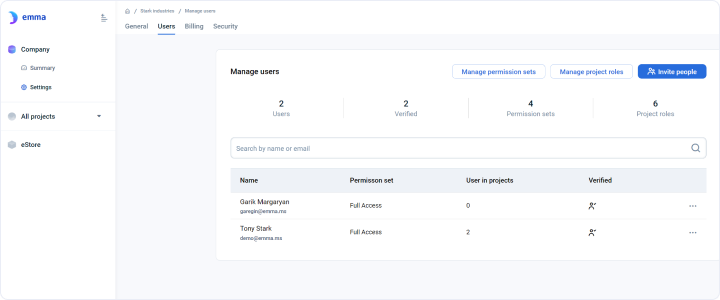
This page is used for managing users in your company. Project Owners or company admins with appropriate permissions and roles can invite users from this page. They can search, edit and delete company users. They can also launch pages to manage user permissions and project roles for the overall company.
Table report on this page
Where can I see all the users in my company? - FAQ
Page navigation — If you click on “Company” then “Settings” and then go to the “Users” tab, you can view the list of all users in your company.
You can find a table of users with their respective company-level permissions. You can also view the number of projects that a specific user is part of or has access to it. The table also displays if the user has been successfully verified or not regarding the emma email registration process.
Actions you can perform on this page
You can perform various actions on this page related to user management. Important actions on this page are as follows:
How do I invite people to my company? - FAQ
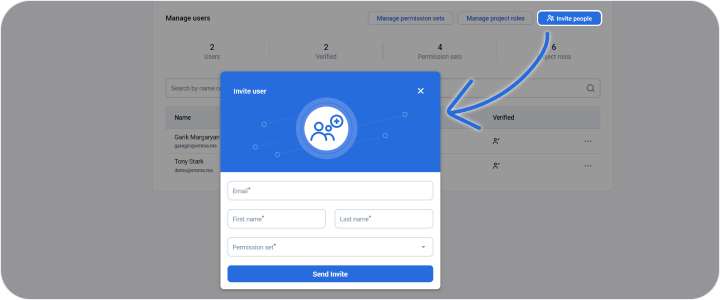
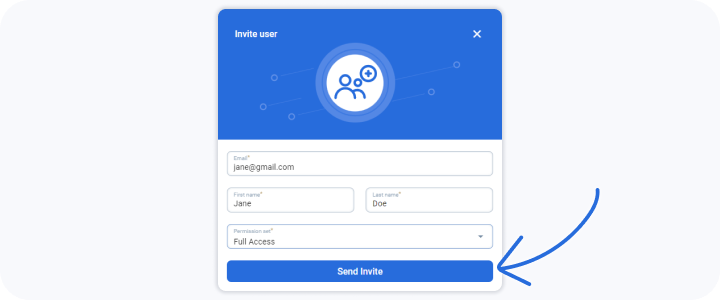
Page navigation — Click on Company → Settings → Users → + INVITE PEOPLE
You can assign the user a pre-existing company permission level or you can create your own permission set and assign that to the user.
How do I edit or delete users? - FAQ
Page navigation — Click on Company → Settings → Users
You can edit or delete users by clicking on the ellipsis next to the target user. You can select edit in case you need to edit user details. You can also delete the user from that dropdown menu.
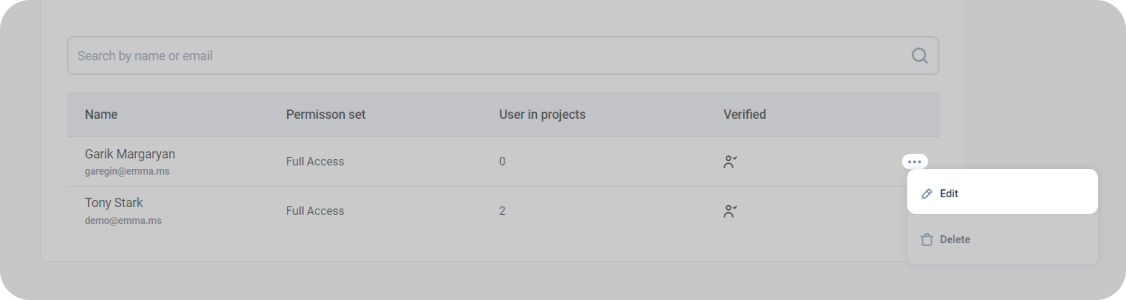
Edit user - A sidebar opens up where the user details can be modified and saved.
Last updated on 1 Aug 2026