
Manage Billing
Overview
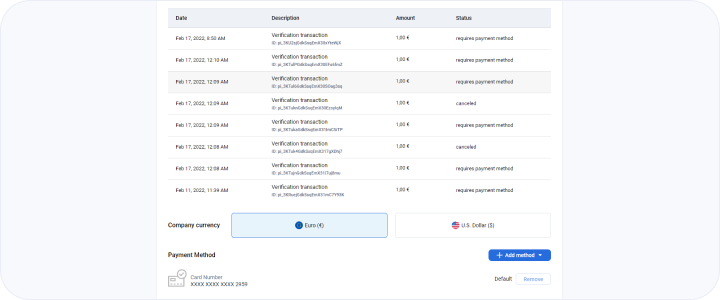
This page allows users to search and view all the previous transactions along with transaction details. This page can also be used by users to view, add, edit and delete their payment methods. You also have the option to conduct your business in either USD or EUR currency, which can be set using the emma interface.
Table report on this page
The searchable table on the billing page shows the following information in the form of columns related to past billing transactions:
- Date - Date of transaction for example - “Mar 30, 2023, 11:24 AM”
- Description - Description of the transaction like “Verification transaction”.
- ID - This column also displays the transaction ID below the description for example - “pi_3MuEdcGdkSsqEmX31WH6mtFF“
- Amount - Amount of the transaction for example - “€ 10.00“
- Status - Status of the transaction for example - “requires payment method“ or “successful”
Please note that the search is connected to the “Description” and “Status” columns
Actions you can perform on this page
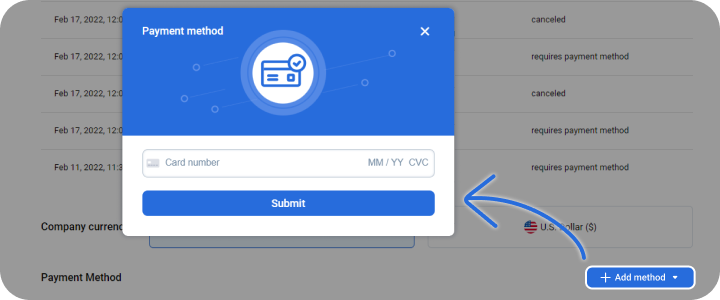
Page navigation — You can add payment methods by clicking on the + ADD METHOD button.
The text input of the pop-up box that opens up has a left side and a right side.
On the right side, you need to add your card number and on the left side of the input you need to add the expiration months and year. You also need to enter the 3-4 digit CVC number, which can be found on the back of your card. Once you are satisfied with your input and you have made sure that the information provided is correct, you can press the submit button. In case of any issues you can contact [email protected]
Last updated on 1 Aug 2026