
Company Explorer
Overview
This page provides users with a comprehensive list of all the company's Virtual machines associated with their projects. Users can choose the parameters they wish to view, filter, and sort the Virtual machines. The dynamic table columns can be managed by adding or removing them according to the users' needs
Page description
This page enables users to see all virtual machines, filtered and sorted, with quick access to the VM “General Info” page.
- A table with six default columns that displays a list of all Virtual machines:
- Object name - the name of the Virtual machine
- Project name - the name of the project to which the Virtual machine belongs
- Location - the geographical region where the Virtual machine is physically hosted
- Provider - with the datacenter
- Created by - the person who created the Virtual machine
- Creation date - the date and time when the Virtual machine was created
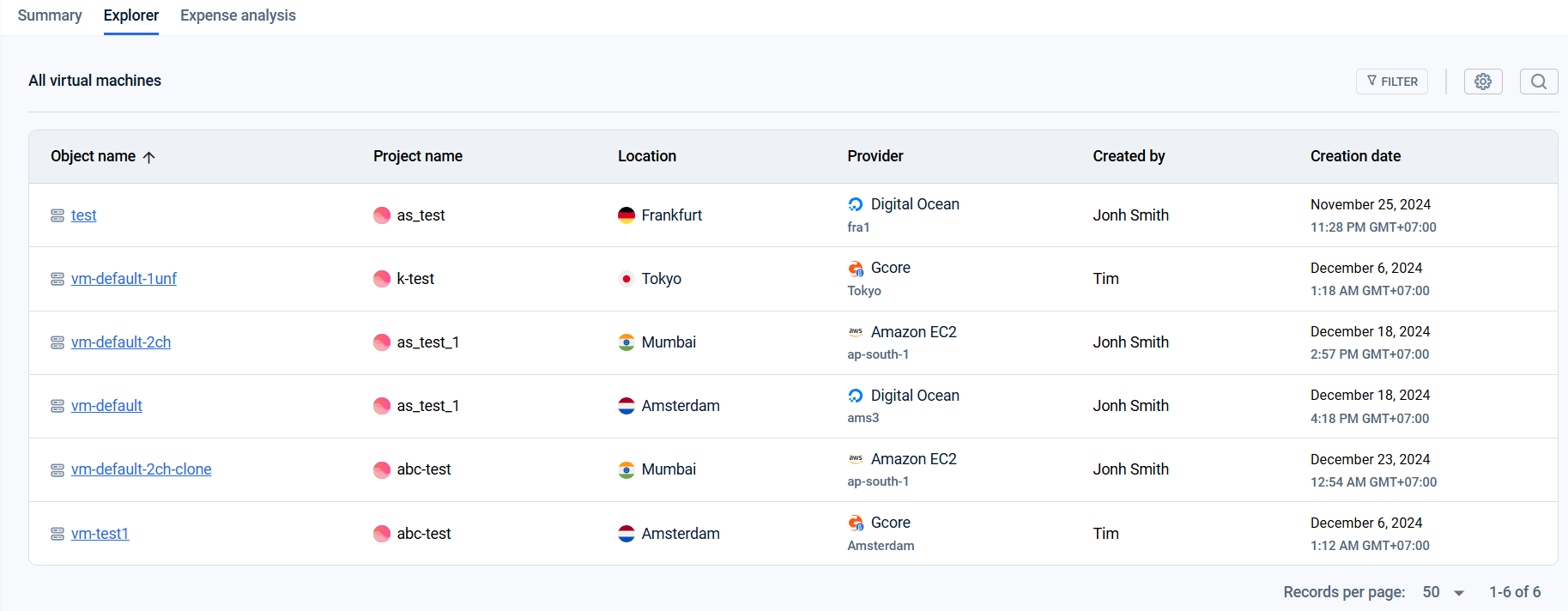
Notice: The tab doesn't save its state: if the user leaves the page, filters, sorting, and paging revert to the default settings.
- Filter button - allows users to apply filters to narrow down the list of Virtual machines

- Settings button - enables users to add or remove columns in the table

- Search bar - provides a way to search for specific Virtual machines based on their names

Actions you can perform on this page
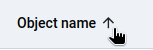
- Sort table columns: Click on the arrow at the right of the column name to refresh and sort the table in ascending or descending order
- Choose and Apply Filters to the Table:
- First, select the parameter by which you want to filter the table
- When selecting "Tag" as Parameter, you will be presented with fields to specify the operator, key, and an optional value
- Do not enter anything in the value field to find all virtual machines that have the specified key, regardless of what value is associated with it.
- Select 'empty' for the value field to find only VMs that have the specified key and an associated value that is empty.
- When selecting "Tag" as Parameter, you will be presented with fields to specify the operator, key, and an optional value
- In the field that appears on the right, select the appropriate operator from the dropdown list
- Enter the value by which you want to filter or select from the proposed options
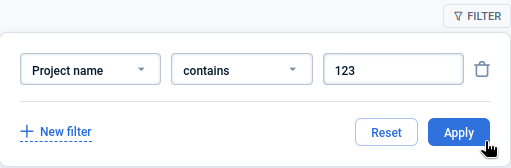
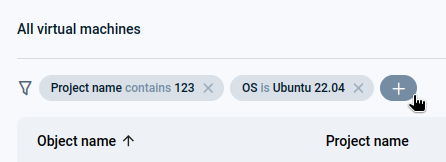
Applied filters appear in the bars above the table

To filter by multiple parameters use one of two ways:
- click the “+ New filter” button during the filters selecting
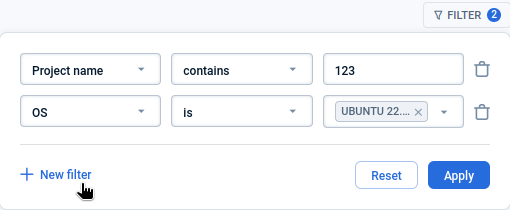
- click on the button on the right of the existing filter bar
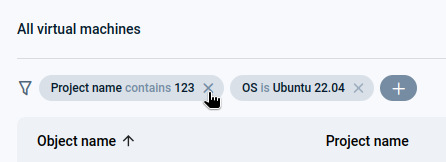
To reset the filter, press the “X” button on the corresponding plate
- Add or delete columns to the table: Click on the settings logo to select the parameters you want to add to the table. You can add and remove parameters by checking and unchecking the checkboxes
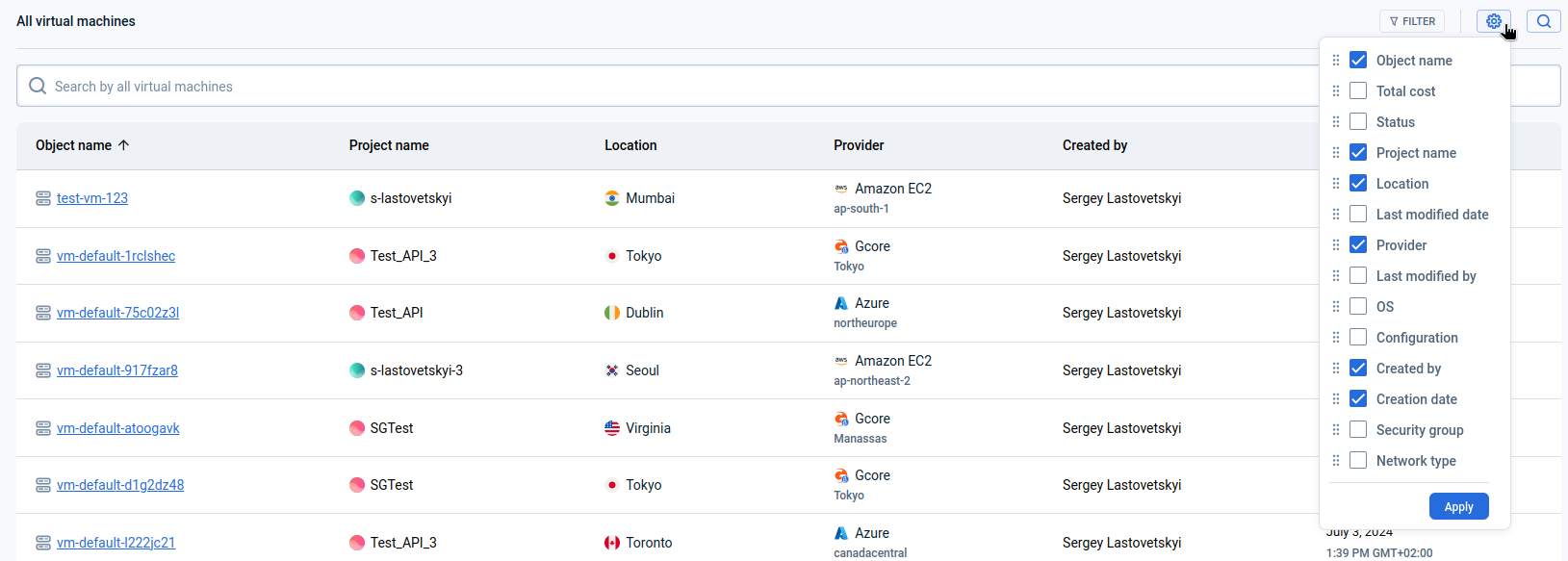
Parameters, available to be added: Object name, Total cost, Status, Project name, Location, Last modified date, Provider, Last modified by, OS, Configuration, Created by, Creation date, Security group, Network type, Tags. Use drag-and-drop in the pop-up to rearrange the column order.
- Search by Virtual machines: Use the “Search” button to open a bar and quickly search for virtual machines in the tables
- Switch to the Virtual machine “General info” page: To quickly access more information about a virtual machine or to manage it, click on the Object name, which is a link to the VM “General Info” page

Last updated on 1 Aug 2026