
Service Apps
Overview
This page allows users to search, view, edit and delete service apps. Users can also create new service apps with infrastructure actions.
What is a service app? - FAQ
A service app, also known as a web app, is a type of cloud computing service offered by emma. A service app is essentially a cloud-based application that runs on a web server, and it can be used to create and host various types of web applications, APIs, and other online services. These apps are typically built using popular programming languages and frameworks, such as .NET, Java, PHP, Python, and Node.js.
Service apps provide a scalable and flexible platform for hosting web-based applications and services without the need for complex server infrastructure. Cloud providers typically offer a variety of features and tools for managing and scaling service apps, such as automatic scaling, load balancing, and continuous deployment.
With service apps, developers can focus on building and deploying their applications without having to worry about server management, scalability, and other infrastructure-related concerns. This makes it easier and more cost-effective to develop and deploy web-based applications and services in the cloud.
What are the uses of services apps? - FAQ
Service apps have diverse uses and can be used for varied purposes. Service apps can be used to create periodic reporting solutions, where data is collected, analyzed, and presented on a regular basis. Here are a few examples of how service apps can be used for periodic reporting purposes:
- Sales Dashboard: A sales dashboard service app can be used to collect data from various sales channels, such as e-commerce sites, point-of-sale systems, and customer relationship management (CRM) tools. The app can then analyze the data and present it in a visually appealing way, allowing stakeholders to gain insights into sales performance over time.
- Social Media Analytics: A social media analytics service app can be used to collect data from various social media platforms, such as Twitter, Facebook, and Instagram. The app can then analyze the data and present it in a dashboard, providing insights into social media engagement, sentiment analysis, and other key metrics over time.
- Financial Reporting: A financial reporting service app can be used to collect data from various financial systems, such as accounting software, banking systems, and payment gateways. The app can then analyze the data and present it in a dashboard, providing stakeholders with insights into financial performance over time.
In each of these examples, the service app is used to collect and analyze data on a regular basis and present it in a way that is easy to understand and act upon. This makes it easier for stakeholders to make data-driven decisions and stay up-to-date on key metrics over time.
Where can I download the emma CLI tool and API documentation? - FAQ
Page navigation — Click on “All Projects“ and navigate to your project. You will be, by default on the project “Summary“ link in the left sidebar. Click on the “Settings” link in the sidebar on the left. You will be navigated to the “General” tab by default. Click on the “Service Apps” tab.
At the top right of the page, you will find a button DOWNLOAD CLI TOOL. You can click on that to launch the GitHub page for the emma CLI tool source code.
Below the DOWNLOAD CLI TOOL button, you will find a link that will launch a page to the emma CLI tool API documentation.
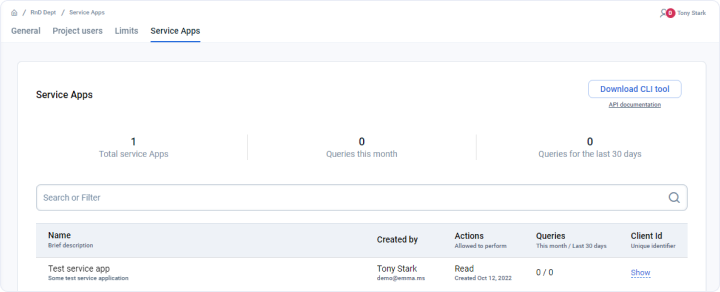
Table report on the page
How can I view all my project service apps? - FAQ
Page navigation — Click on “All Projects“ and navigate to your project. You will be, by default on the project “Summary“ link in the left sidebar. Click on the “Settings” link in the sidebar on the left. You will be navigated to the “General” tab by default. Click on the “Service Apps” tab.
You will see a simplified summary of all the service apps associated with your projects.

Below the project “Service Apps” summary, you will find a searchable table of all the service apps in your project. This table has columns and they tell the following information about the service apps:
- Name - Name of the service app. It also shows a brief description of the app below the name.
- Created by - The user who created the service app. Below the user name, you can also find the associated email for that user.
- Actions - This column provides info about the infrastructure available for the app. Available accesses are “Read, Operate, Manage, Full access“. This column also provides the date the service app was created.
- Queries - This column gives the count of API queries this month and compares it with the number of queries in the last year.
- Client ID - Unique identifier for the app for example - "4a62dc28-4d01-4ba4-8788-27532d16adc9“
- Client Secret - Authentication key for example - “d58922ec-82c4-4816-a210-4de7e8f9e675“
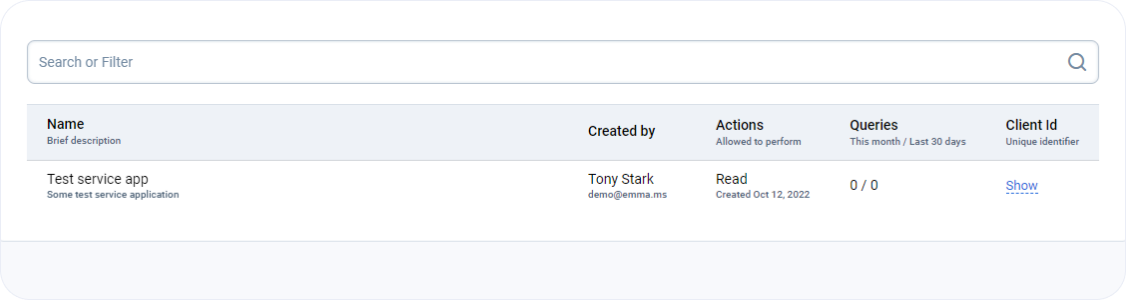
Actions you can perform from this page
What is Client ID & “Client Secret” (Authentication key)? - FAQ
Think of this as the credentials for the service app. This is used when connecting with other apps, VMs and APIs.
Client ID and Client Secret, also known as Authentication Keys, are credentials that are used to authenticate and authorize access to various cloud services, including service apps. These keys are generated by the cloud provider and are unique to each service app instance.
The Client ID is a unique identifier that is used to identify the service app instance. The Client Secret, on the other hand, is a secret key that is used to authenticate and authorize access to the service app instance. These keys are used in combination to provide secure access to the service app.
When a user or a system tries to access a service app instance, they must provide the correct Client ID and Client Secret combination. If the keys are correct, access to the service app is granted, and the user or system can perform authorized actions.
In the context of connecting with a VM, the Client ID and Client Secret are used to establish a secure connection between the service app and the VM. This allows the service app to perform authorized actions on the VM, such as deploying code, executing scripts, and managing system resources.
Overall, Client ID and Client Secret are important credentials that are used to secure access to cloud services, including service apps. These keys provide a way to authenticate and authorize access to service app instances, ensuring that only authorized users and systems can access and interact with the service app.
Where can I find the project service app’s unique “Client ID” and Client Secret (Authentication key)? - FAQ
Page navigation — Click on “All Projects“ and navigate to your project. You will be, by default on the project “Summary“ link in the left sidebar. Click on the “Settings” link in the sidebar on the left. You will be navigated to the “General” tab by default. Click on the “Service Apps” tab.
In the table, you need to find the columns named Client Id and Client Secret. If you click on the Show button. You can view and copy the project service app’s unique “Client ID” and Client Secret (Authentication key) from the columns.
How can I create a Service app for my project? - FAQ
Page navigation — Click on “All Projects“ and navigate to your project. You will be, by default on the project “Summary“ link in the left sidebar. Click on the “Settings” link in the sidebar on the left. You will be navigated to the “General” tab by default. Click on the “Service Apps” tab.
At the top right of the page, you will find a button + CREATE SERVICE APP. You can click on that to launch the sidebar page component. You add a name for the service app and a meaningful description of the service app. You will also need to define the level of Infrastructure access available for the app. The different infrastructure access levels available are as follows:
- Read
- Operate
- Manage
- Full access
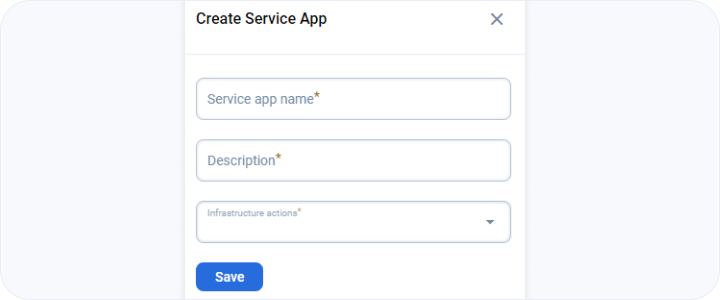
How to edit and delete a project service app? - FAQ
Page navigation — Click on “All Projects“ and navigate to your project. You will be, by default on the project “Summary“ link in the left sidebar. Click on the “Settings” link in the sidebar on the left. You will be navigated to the “General” tab by default. Click on the “Service Apps” tab.
You will be able to see a table of service apps. At the end of each row is an ellipsis (…) which you can click. Then you can click 🖉 EDIT.
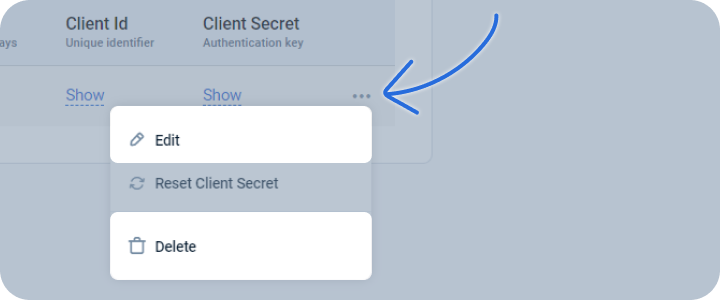
A sidebar component will open up on the right. You can change the name of the service, its description and the level of access, for the “Infrastructure actions”, a service app can have.
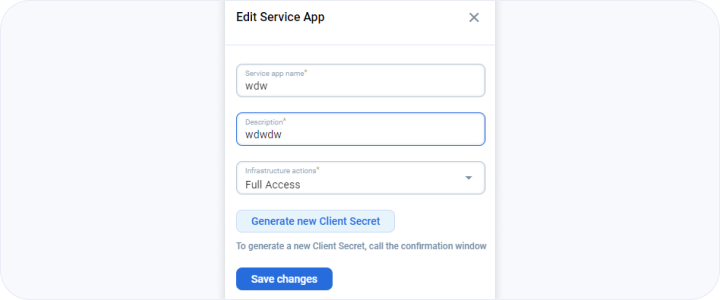
You can delete the service app by clicking on the 🗑 DELETE menu from the dropdown menu.
How to reset the project service app’s client secret or the authentication key? - FAQ
Page navigation — Click on “All Projects“ and navigate to your project. You will be, by default on the project “Summary“ link in the left sidebar. Click on the “Settings” link in the sidebar on the left. You will be navigated to the “General” tab by default. Click on the “Service Apps” tab.
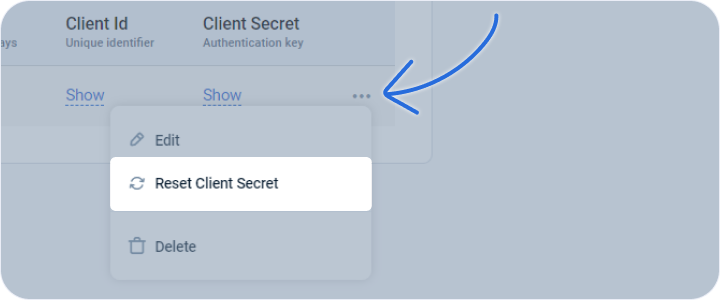
You will be able to see a table of service apps. At the end of each row is an ellipsis (…) which you can click. Then you can click RESET CLIENT SECRET
Last updated on 1 Aug 2026