
Subnets
Overview
The Subnets page gives you visibility into the network infrastructure of your project group. You can browse all subnets, open a side panel to quickly inspect any subnet's configuration, routing, peerings, and instances, or navigate to the full subnet page for a detailed view.
The page currently displays only AWS subnets.
Content on this page
The page displays a paginated table with all subnets across the connected cloud accounts of your project.
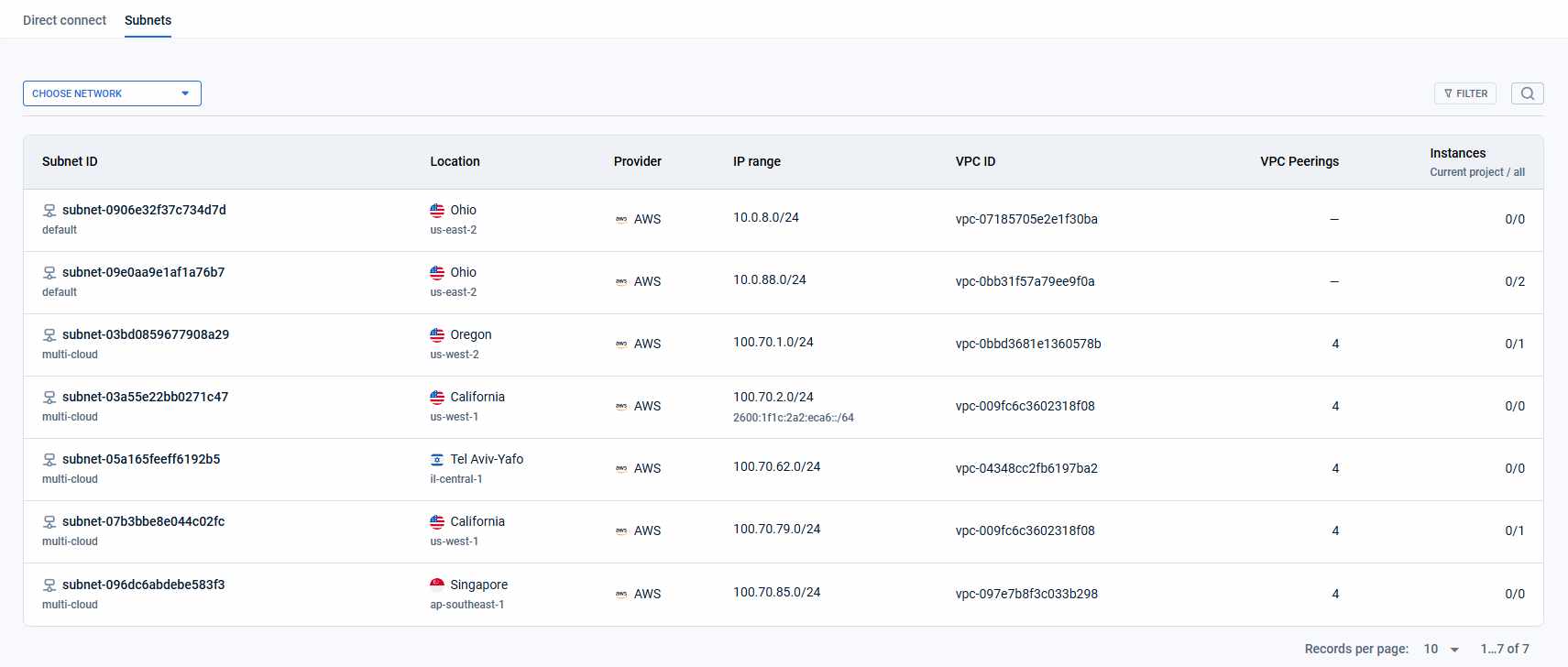
Each row in the table shows:
- Subnet ID — cloud provider identifier of the subnet. Includes a badge showing the network type: Multi-cloud, Default, or Isolated.
- Location — geographic location where the subnet is deployed.
- Provider — cloud provider (e.g., AWS, GCP, Azure).
- IP range — IPv4 and/or IPv6 CIDR blocks assigned to the subnet.
- VPC ID — cloud identifier of the Virtual Private Cloud this subnet belongs to.
- VPC Peerings — number of active VPC peering connections.
- Instances — number of compute instances in this subnet (current project / all).
Network type badges:
- Multi-cloud — the subnet may be connected to the networks of other providers (AWS, GCP, Azure).
- Default — a standard subnet with no special connectivity configuration.
- Isolated — the subnet has no active peerings and is not connected to external networks.
Filtering and search:
- Use the Choose network dropdown to filter subnets by network type: Multi-cloud, Default, or Isolated.
- Click the search icon to open the Search field and search across subnets by name, ID, or IP range.
- Click Filter to filter the table by provider, location, or other parameters.
Actions you can perform on this page
Open subnet side panel
Click on the row — the right-side panel opens with the subnet's details. The panel has four tabs**: Details, Routes, Peerings**, and Instances.
Open full subnet page
Click Detail view in the subnet side panel — the full subnet page opens.
Subnet side panel
Subnet → Details
Overview
The Subnet details view shows the complete configuration of a selected subnet. It is available both as a right-side panel (quick view) and as a full page (detailed view).
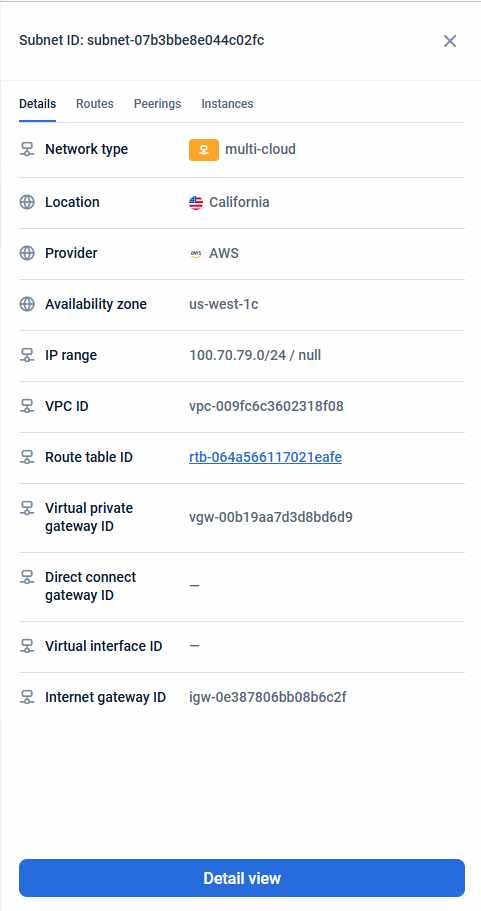
The Details tab shows the following fields:
- Network type — connectivity type of the subnet: Multi-cloud, Default, or Isolated.
- Location — geographic location (e.g., Frankfurt).
- Provider — cloud provider (e.g., AWS, GCP, Azure).
- Availability Zone — specific availability zone within the region (e.g., eu-central-1a).
- IP range — IPv4 and/or IPv6 CIDR blocks.
- VPC ID — cloud identifier of the parent VPC.
- Route table ID — cloud identifier of the associated route table.
- Virtual private gateway ID — cloud ID of the attached virtual private gateway (AWS).
- Direct connect gateway ID — cloud ID of the Direct Connect gateway (AWS).
- Virtual interface ID — cloud ID of the virtual interface for Direct Connect (AWS).
- Internet gateway ID — cloud ID of the internet gateway attached to the VPC (AWS).
Subnet → Routes tab
Overview
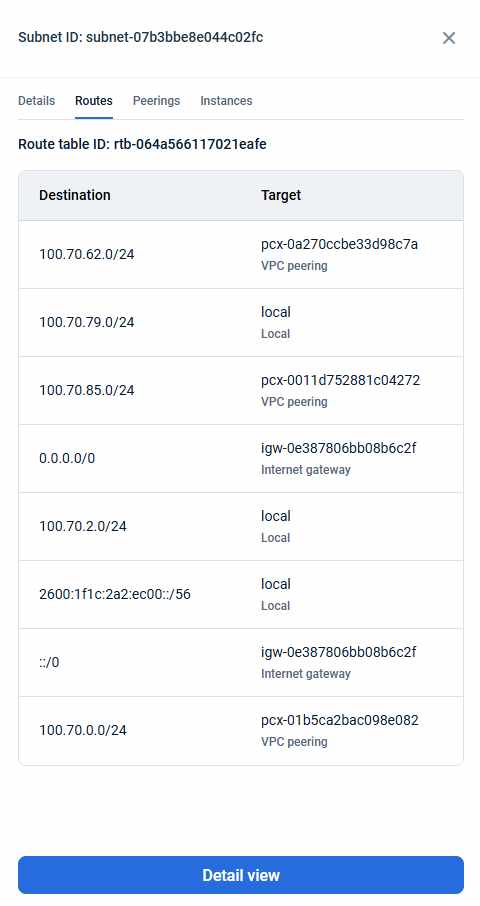
The Routes tab shows the routing rules applied to a subnet via its associated route table. Use it to understand how traffic is directed within and outside the subnet.
Content on this page
At the top of the tab, the Route table ID is displayed — the identifier of the route table controlling this subnet's traffic.
Below it, each route entry shows:
- Destination — target IP range for this route (IPv4 or IPv6 CIDR, e.g., `0.0.0.0/0`).
- Target — where matching traffic is sent: local network, internet gateway, VPC peering connection, transit gateway, etc.
Subnet → Peerings tab
Overview
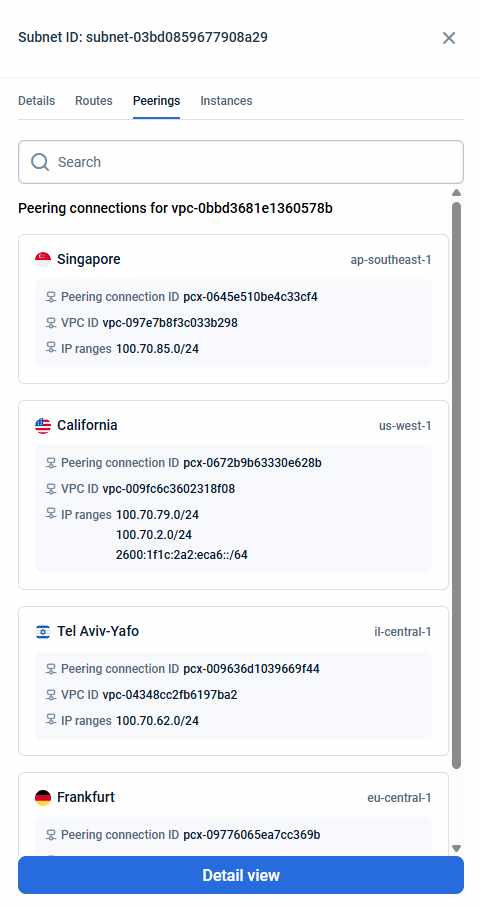
The Peerings tab lists all VPC peering connections for the selected subnet. Use it to see which remote VPCs are connected and what IP ranges they expose.
Content on this page
At the top of the tab, the Peering connections for VPC header shows the local VPC ID.
Each peering entry shows:
- Location — city and region of the remote VPC (e.g., Frankfurt, eu-central-1).
- Peering connection ID — cloud provider identifier of the peering connection.
- VPC ID — identifier of the remote (peered) VPC.
- IP ranges — CIDR blocks of the remote VPC. Hover over the field to see all ranges in a tooltip; click the copy icon to copy them.
Subnet → Instances tab
Overview
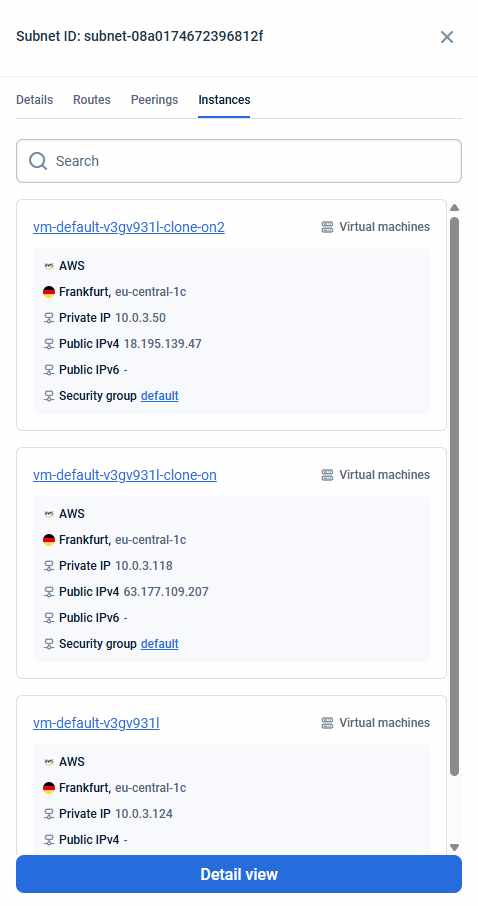
The Instances tab shows all compute instances deployed within the selected subnet and project. Use it to see which workloads are running inside the subnet and their network addresses.
Content on this page
Each instance entry shows:
- Name — instance name.
- Provider — provider name.
- Location — data center and availability zone where the instance is deployed.
- Private IP — internal IP address within the subnet.
- Public IPs — external IPv4 and/or IPv6 addresses (if assigned).
- Security group — identifier of the attached security group.
Last updated on 1 Aug 2026