
My CompanyCompany Budgets
Add budget
Overview
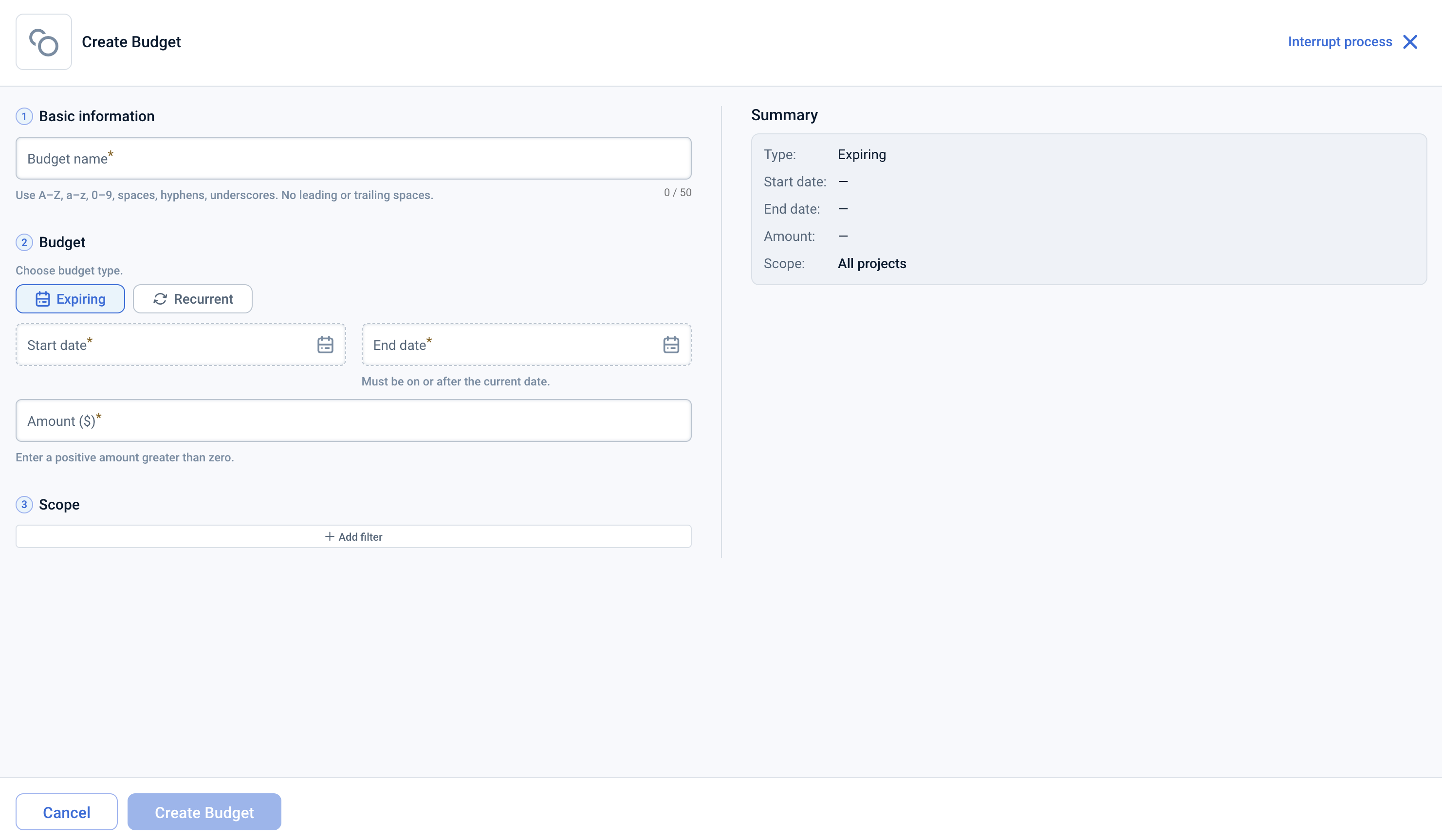
The Add budget form lets you create a new budget for tracking cloud spending against a defined limit. Open it by clicking + Add budget on the Budgets page.
To create a budget, you need the Access FinOps management permission and access to the projects you want to include in the budget scope.
Content on this page
The form contains the following fields:
- Name — A unique name for the budget.
- Type — The budget type. Select Expiring for a one-time budget with a fixed end date, or Recurrent for a budget that resets automatically on a regular schedule. Cannot be changed after the budget is created.
- Period — Visible only for recurrent budgets. Sets how often the budget resets: Monthly, Quarterly, or Yearly. Cannot be changed after the budget is created.
- Start date — The date the budget period begins.
- For expiring budgets: set year, month, and day. Must be before the end date. Can be changed after creation.
- For recurrent budgets: set based on the selected period (year and month for Monthly; year and quarter for Quarterly; year for Yearly). Can not be changed after creation.
- End date — Visible only for expiring budgets. The date the budget period ends.
- Budget amount — The spending limit for this budget in the company’s currency.
- Scope — Filters that define which cloud costs are tracked by this budget. You can filter by any combination of:
- Projects — visible at company level only.
- Services
- Cloud providers
- Locations
- Data sources — visible at company level only. Filters by billing origin: the built-in emma source (your emma-provisioned resources) or an external cloud billing account (AWS, Azure, or GCP) connected on the Import page.
Actions that you can perform on this page
- Create budget — Click Create budget to save the new budget. The button is disabled if any field fails validation.
- Cancel — Click Cancel or close the form to discard changes and return to the Budgets page.
How is this guide?
Last updated on 12 Aug 2026