
Manage user project roles
Overview
This page can be used by project owners or company admins to view, add, edit and delete project roles. This page provides info about varying levels of permissions to infrastructure and administrative actions within a project. The actions relate to the entities of a project.
What are the main entities of a project? - FAQ
The main entities of a project are the important components or services that can be performed in the project. Users can interact with these services and components of a project:
- Dashboard
- Compute resources
- Spot instances
- Kubernetes
- Applications
- Networks
- eStore
What is a user project role? - FAQ
There are two categories of permissions or accesses to perform certain actions related to entities of a project. The level of permission from the two permission categories is bundled together to form a project role. These two categories of permissions pertain to necessary access to perform certain actions related to projects. Each of these two categories of permissions has four levels of permission. Each of these permission levels is in incrementally increasing order to each other. The permission categories and their respective permission levels in incrementally increasing order are as follows:
-
Infrastructure project actions:
Read - Read project information Operate - Operate with the entities of the project Manage - Manage the entities of the project Full access - Full access to all the entities of the project
-
Administrative project actions
Read users and limits - Read lists of members and limits Manage users - Manage project user lists. You can add or remove company users from the project. Manage limits - Manage project limits. Project limits refer to the limits a user can put on a project for example limits on cost, number vCPU, vRAM usage by VM and storage usage by VM. Manage project - Manage network settings and delete project
-
Table report on this page
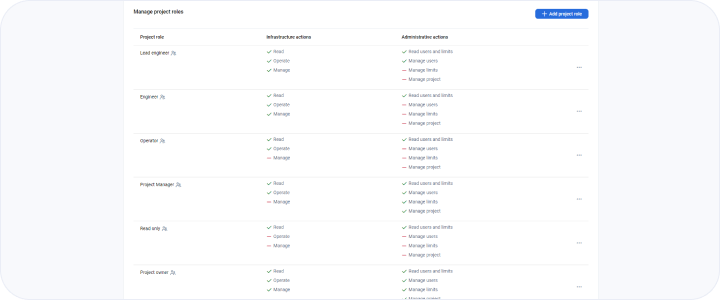
This table displays the list of different user project roles already defined in your company. The table also elaborates on the constituent permission levels in each of the permission categories. If you look closely at the screenshot below, you will notice that the second and third columns represent the two categories of permissions and the permission levels in those categories are mentioned in front of each project role.
For example: for the engineer role you will notice that he/she has all the accesses regarding infrastructure actions but does not have full access. Similarly, regarding administrative actions accesses, he/she has only access to view the project users but does not have access to manage users, limits and projects.
Actions you can perform on this page
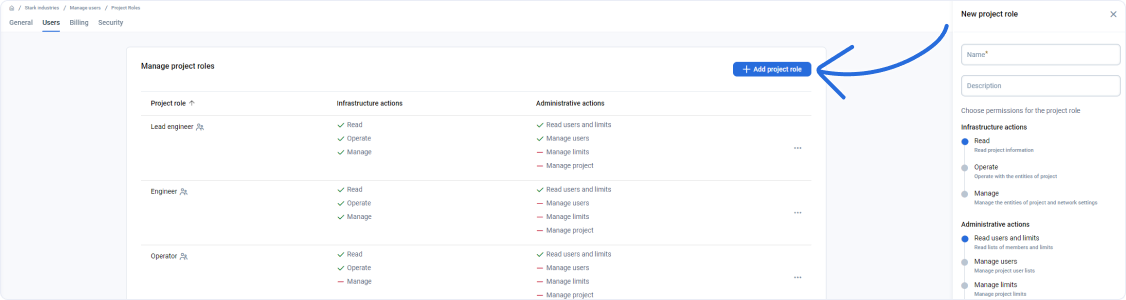
You can add a custom project role using this page. If you click on the + ADD ROLE button, a sidebar will open up on the right.
You can add your custom project role using this sidebar. You can use this custom project role to assign project-level core accesses to users. Add a name for the project role and a meaningful description. After that, you need to select a permission level in each of the permission categories. The first permission level is selected by default, in each permission category, and it lets user just manage their projects. Every user in the project needs to have a project role.
Last updated on 1 Aug 2026