
Project ServicesVMs
Advisor
Overview
emma’s advisor engine scans your cloud infrastructure to surface recommendations that help reduce costs and improve performance.
We support searching of the following recommendation types:
- Rightsize VM - Optimize underutilized instances to save costs
- Upsize VM - Upsize instances to boost performance
- Delete VM - Eliminate idle or unused VMs
- Reallocate VM - Move VM to a lower-cost region or cloud provider
This page allows you to explore recommendations and apply them.
Content on this page
Page navigation — Navigation → Click on ‘Project' → Click on 'Virtual machines’ → Go to 'Advisor'
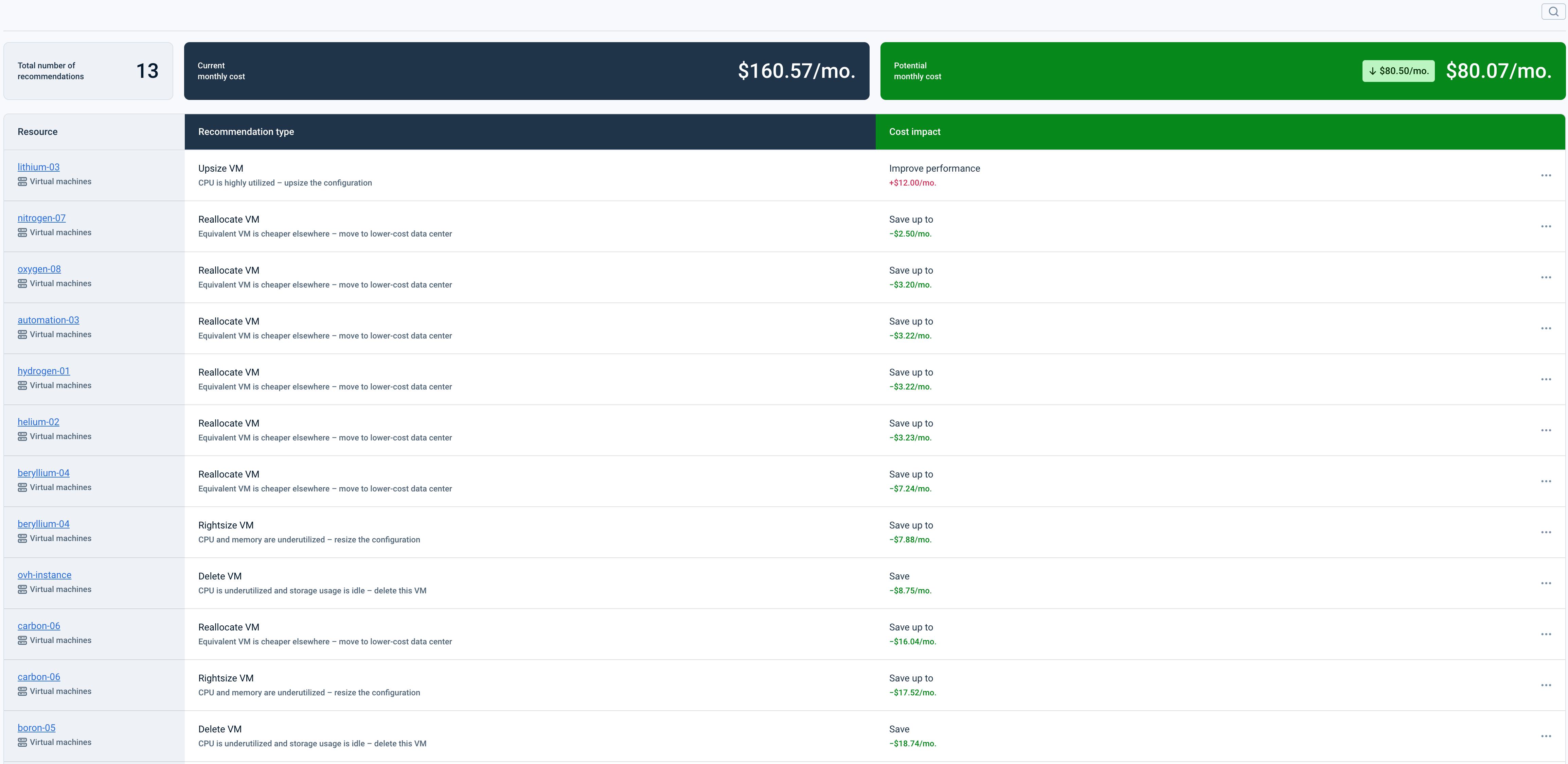
At the top of the page, a dedicated metrics panel provides a high-level financial overview of all recommendations related to the “Virtual machine” service in the project.
- Total Recommendations - The count of all recommendations
- Current Monthly Cost - The total current monthly cost of all infrastructure resources affected by the recommendations
- Potential Monthly Cost - The projected monthly cost after applying all selected recommendations
- Total Potential Benefit - The aggregate financial impact of applying the optimal recommendation per resource
Below the metrics, each recommendation is presented as a row containing:
- Resource name
- Recommendation type
- Short recommendation description
- Benefit
Actions that you can perform on this page
On the Advisor page, you can perform the following actions:
- View a detailed recommendation card - Click a recommendation row in the table or select Detailed info from the context menu to open the recommendation’s detailed view.
- Apply a single recommendation - Automatically execute an applicable recommendation.
- Review manual application instructions - For recommendations that cannot be automated, a How to guide is available in the detailed view, providing step-by-step instructions for applying the change manually.
- Select multiple applicable recommendations – Select the checkboxes next to recommendations to include them in a bulk action. The system prevents:
- Selecting more than one recommendation per resource
- Selecting recommendations you do not have permission to apply
- Selecting inapplicable recommendations
- Apply multiple recommendations - Execute all selected recommendations simultaneously.
- Search recommendations - Filter recommendations by type or resource name.
How can I search for recommendations on this page? - FAQ
- Activate the search bar. The search bar is hidden by default. Click the the Search button in the top-right corner of the page to reveal it.
- Type your search term. As you type, the system instantly filters recommendations in real time.
- See results. Only recommendations matching your search term in the recommendation type or resource name fields are displayed. The search is case-insensitive and supports partial matches.
- Clear or Cancel. Click the [X] inside the search bar to clear your query and restore the full list.
How is this guide?
Last updated on 1 Aug 2026