
All VMs
Overview
This page shows all the active and inactive virtual machines. Users can open each VM and inspect the server details, monitoring and analytics. The user also has access to VM settings which includes power settings, operations settings, and actions that can be performed.
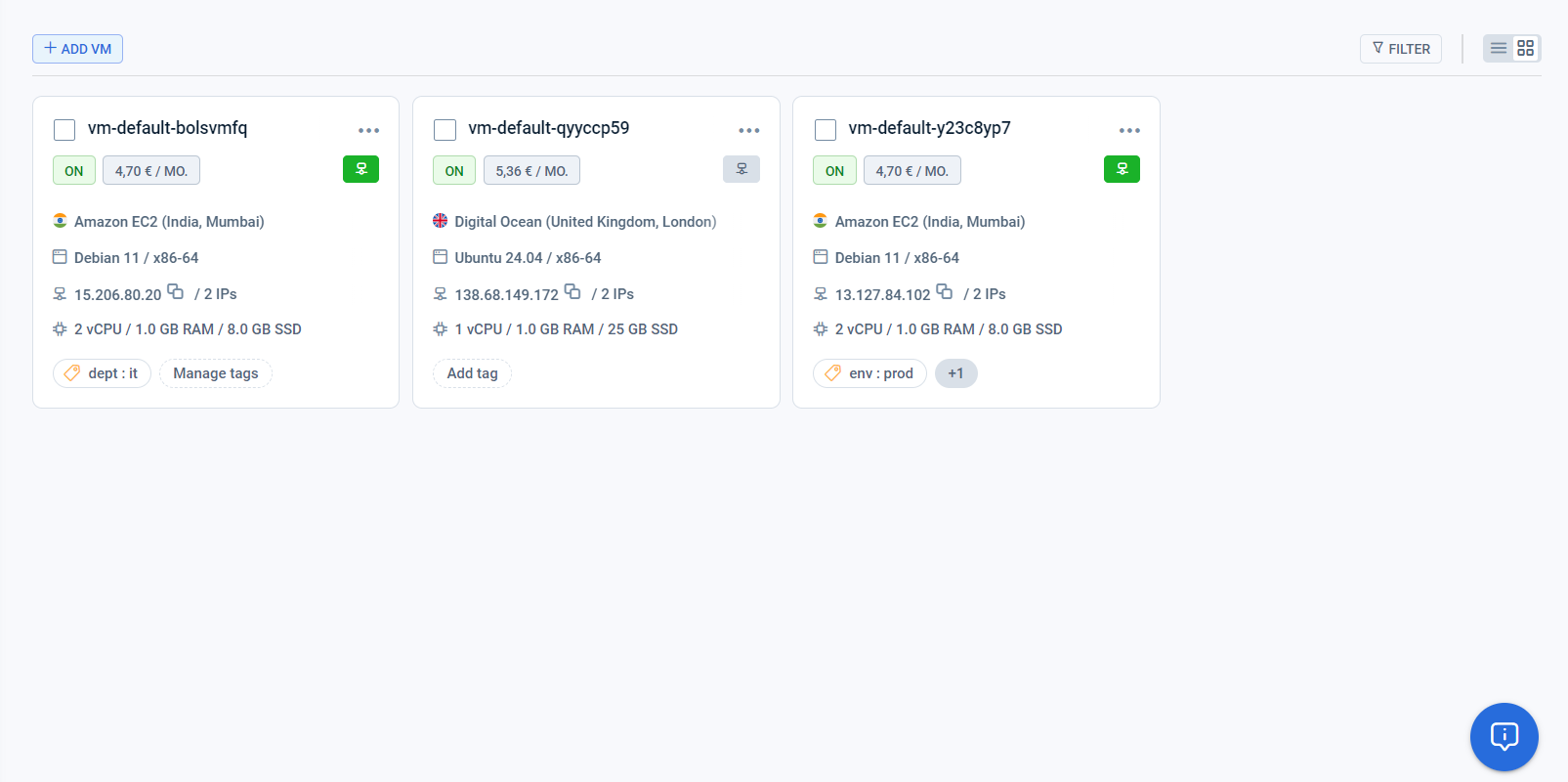
Information on this page
This page provides an overview of virtual machines and the ability to perform actions with some entities at once.
- “+Add VM” button - To launch the VM creation wizard
- “Switch mode” button - To change view mode from tiles to list
- Tiles or rows - To show the Virtual machine name, status, configuration, tags
- Check-box - To select Virtual machines for the mass-actions
- “Actions” menu - To start the needed action for one or more virtual machines at once
- “Ellipsis” menu - To start the needed action for the one virtual machine
Actions you can perform on this page
On this page, you can perform actions using the single-selection “Ellipsis” or the mass-selection "Action" menu and with buttons.
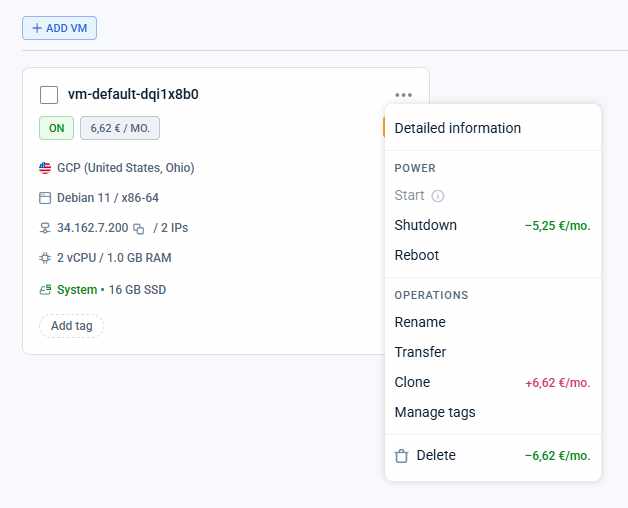
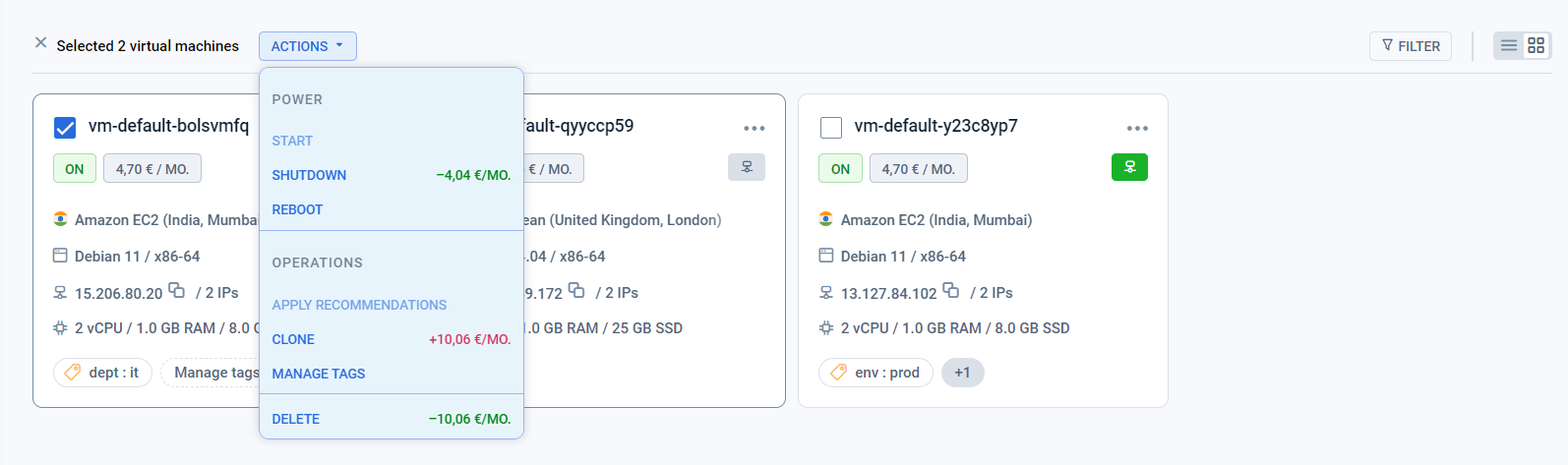
Actions available with the menu:
The “Action” menu will appear instead of the “+Add VM” button after you select at least one virtual machine by checkbox. The “Ellipsis” menu can be found on the right on the virtual machine tile or the row, depending on the visual mode.
- Start: You can activate the Virtual machines with the status OFF
- Shutdown: You can shut down the Virtual machines with the status ON
- Reboot: You can reboot the Virtual machines with statuses ON and OFF. After the reboot, the instance will have an ON status
- Rename: Allows changing the name of the virtual machine. Applicable in all statuses except "FAILED".
- Transfer to another location: The “Transfer” button opens a side page with the list of available locations with the same configuration, provider, and OS. For more information about the transfer process, please refer to the block “How do I move a virtual machine to another location?“ in the article “Virtual machine details General Info“
- Clone: You can clone your Virtual machine to another Virtual machine with the same configuration and OS. Your data is also cloned over exactly like the source Virtual machine
- Manage tags: You can manage tags for one or several virtual machines at once. Edit tag value or add a tag to the lists of all chosen Virtual machines, or delete tags from all chosen instances.
- Delete: You can delete the Virtual machine regardless of its status
Notice:
- You may have menu items disabled in cases if you try to perform actions for the virtual machines with states for which they are not allowed. For example - you can not reboot a shutdown virtual machine.
- The list of the “Actions” menu can change according to the statuses of the selected Virtual machines. As an example - if you have a VM with the status “BUSY” among selected, you will only have the delete option virtual machines in the “Action” menu.
Actions available with the buttons:
- “+Add VM” button: redirects you to the “VM creation wizard” page where you can choose a configuration needed and launch a new virtual machine step-by-step

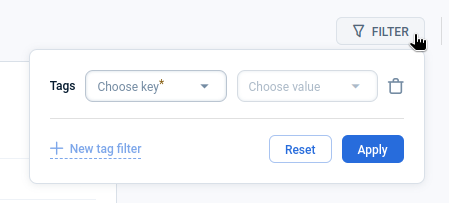
- “Filter” button: opens a tile where you can select filters to get a list of sorted virtual machines by tags. You can filter as only by “key”, as by “key: value” pairs.
- “Change visual mode” button: switch between the “tile” and “row” visual modes.


Last updated on 1 Aug 2026