
GCP setup guide
Prepare a GCP billing export in BigQuery and the read-only credentials emma needs to import your GCP costs.
Overview
This guide explains how to prepare your GCP account so that emma can access your billing data, and what credentials to provide during the connection setup.
emma reads your billing data from a BigQuery dataset you control — it never accesses your workloads or infrastructure.
Before you start
You need access to Google Cloud Console with:
- Billing Account Administrator or Billing Account Viewer role
- Permission to manage billing exports. If you have multiple billing accounts, you must set up export for each one separately
- Permission to create IAM roles, Service Accounts and manage BigQuery datasets
Step 1 — Enable Billing Export to BigQuery
- Open GCP Billing Console and select your billing account.
- In the left menu, click Billing export → BigQuery export.
- Under Detailed cost data, click Edit settings.
- Select the GCP project that will host the dataset (e.g. my-company-billing-project).
- Create a new dataset or select an existing one.
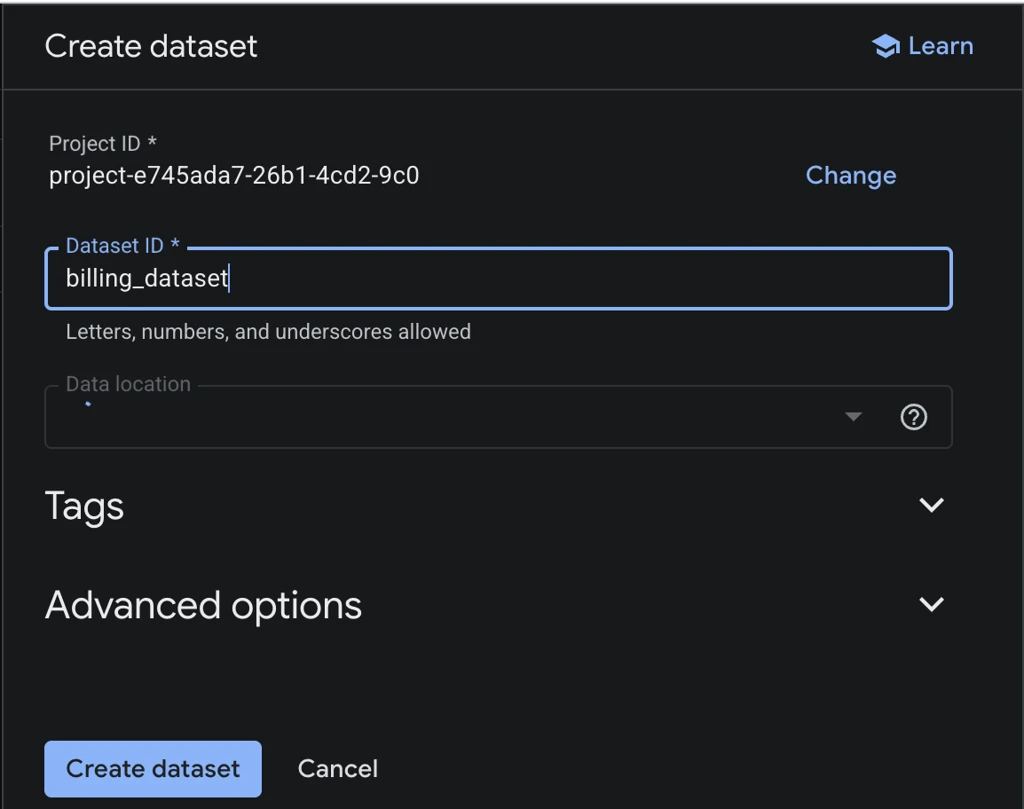
- Click Save.
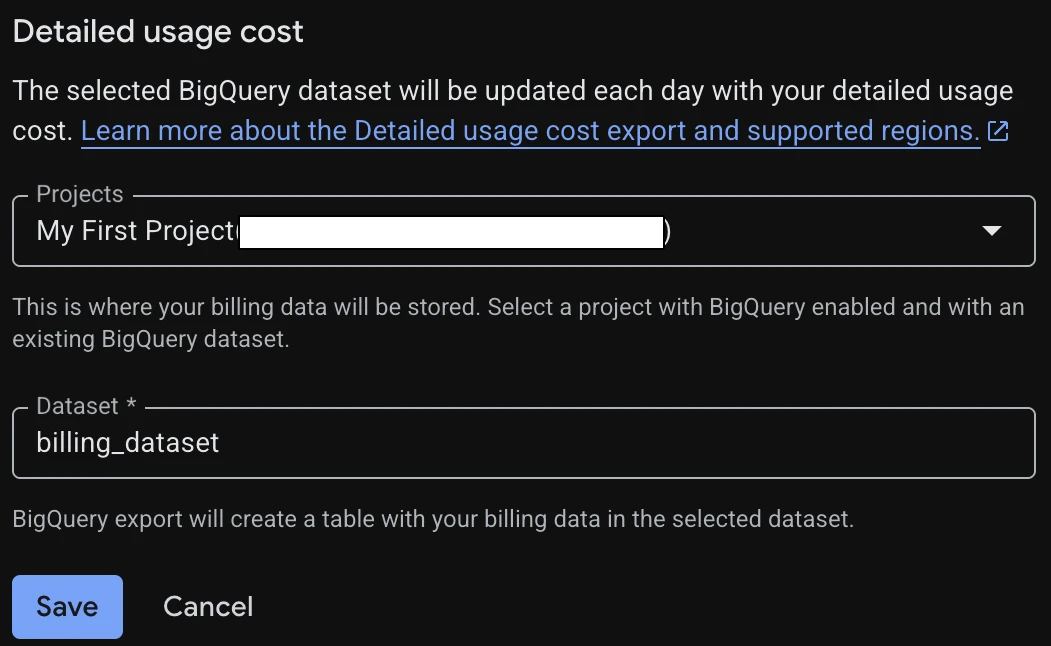
GCP will automatically create a table named gcp_billing_export_v1_<billing_account_id> in the selected dataset.
Save the dataset name and table name — you will need them later.
Step 2 — Create a Service Account
This account will be used by emma to access your BigQuery dataset.
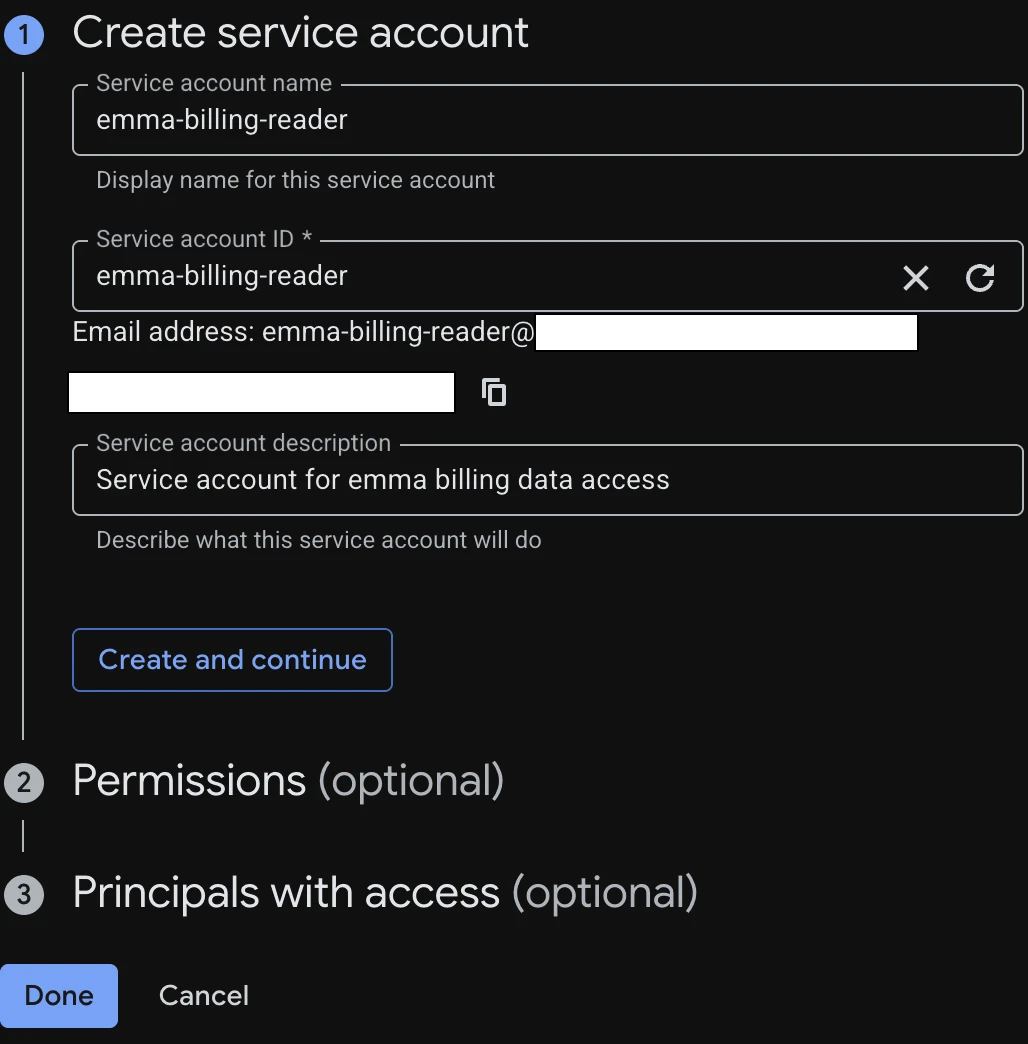
- Open IAM & Admin → Service Accounts → your project → Create Service Account.
- Fill in:
- Service account name: e.g. emma-billing-reader
- Description: e.g. Service account for emma billing data access
- Click Create and Continue.
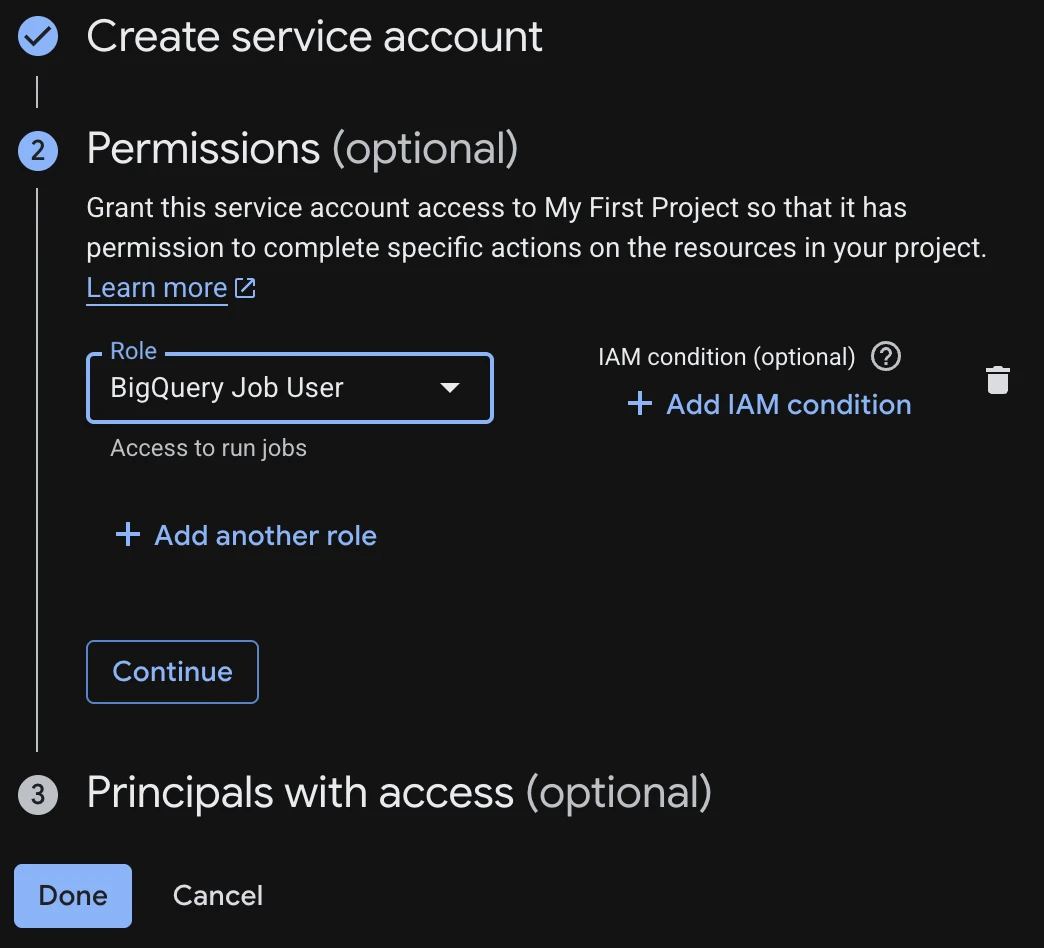
- Add role: BigQuery Job User (roles/bigquery.jobUser).
- Click Done.
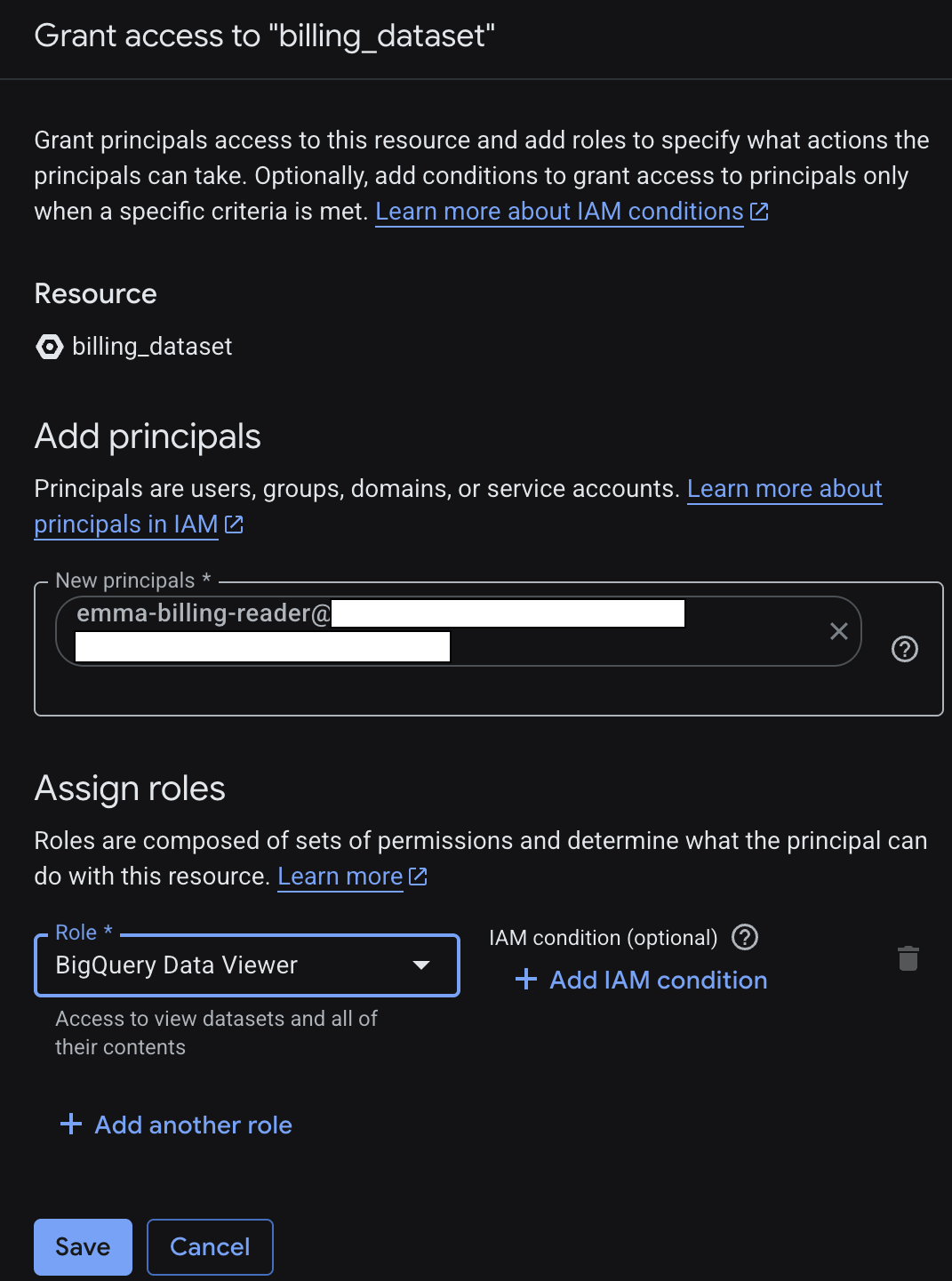
Step 3 — Grant BigQuery Data Viewer on the dataset
- Open BigQuery Console → Datasets → your dataset
- Click Share → Manage permissions → Add Principal.
- Fill in:
- Service account email (e.g. emma-billing-reader@my-company-billing-project.iam.gserviceaccount.com).
- Role: BigQuery Data Viewer.
- Click Save.
Step 4 — Download the JSON key
- Open IAM & Admin → Service Accounts → your project → your service account (e.g. emma-billing-reader)
- Go to the Keys tab → Add Key → Create new key.
- Select JSON and click Create. The file downloads automatically.
This JSON file is your Service Account JSON key. Store it securely.
What to enter in emma
| Field | Value |
|---|---|
| Service account JSON key | The .json file downloaded in Step 4 |
| Project ID | https://console.cloud.google.com |
| Dataset name | Copied from Step 1 |
| Table name | Copied from Step 1 |
Last updated on 12 Aug 2026